Building Your App
How to Enable and Configure Enhanced Quick Add
1. Turn on Enhanced Quick Add in App Settings
- Go to App Settings
- Open Products
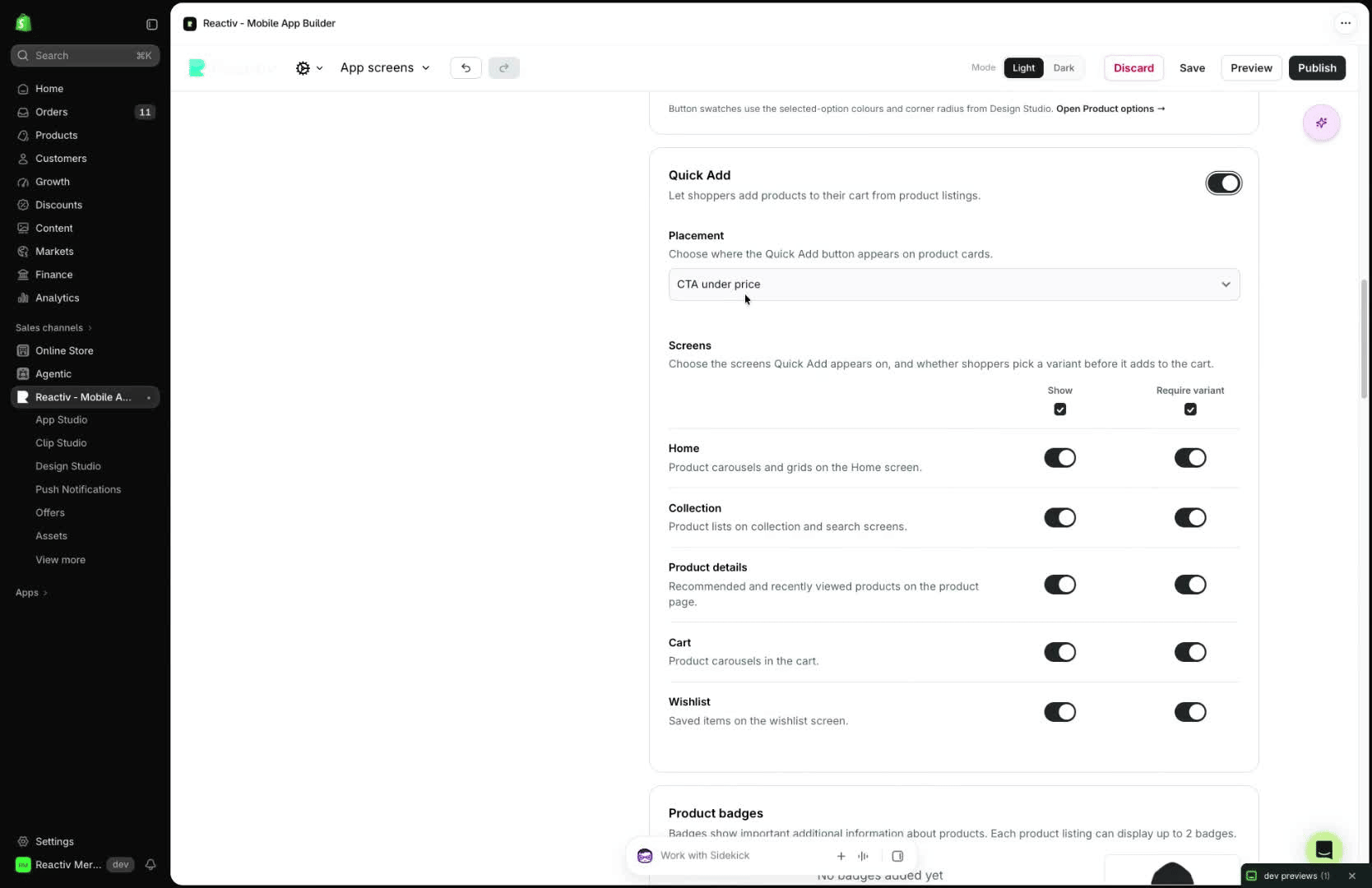
- Scroll to Quick Add
- Toggle the feature on to enable Quick Add
2. Choose the Quick Add button style
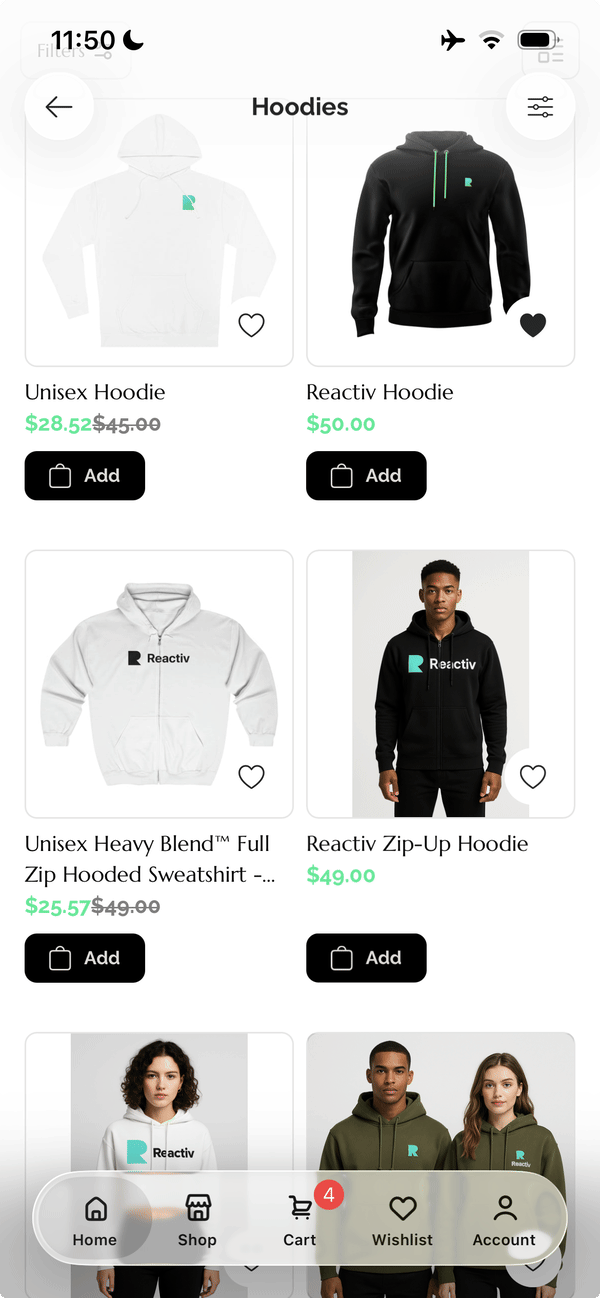
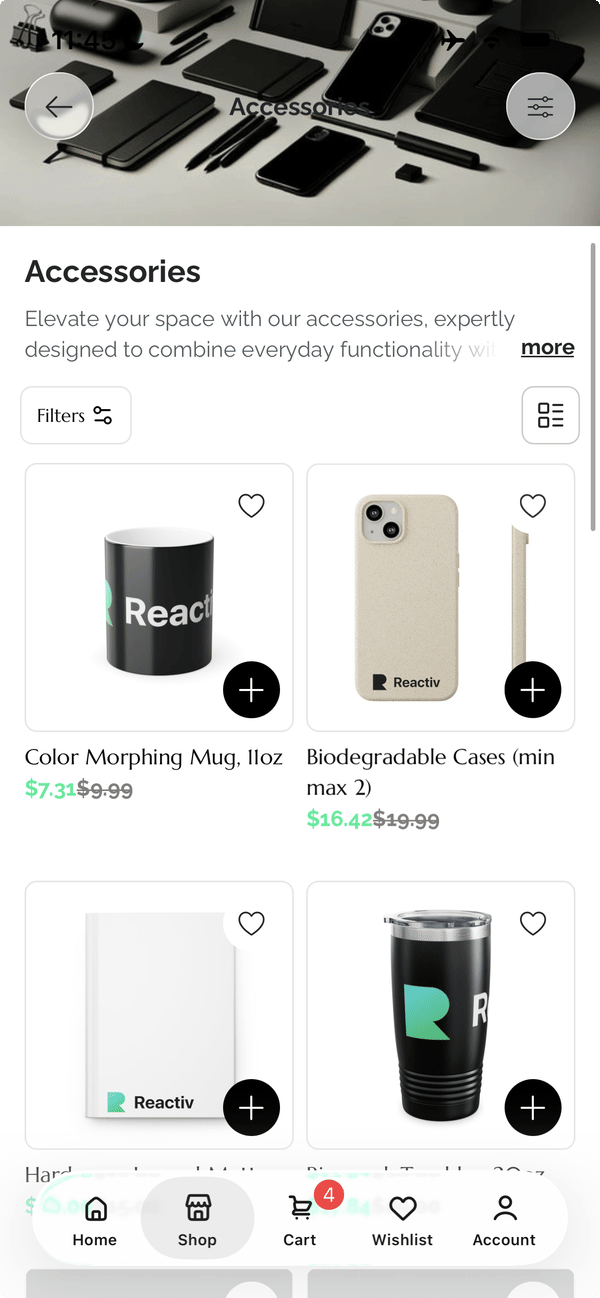
- Select how Quick Add should appear on the storefront:
- Add button shown under the price
- Plus sign button shown over the product image
- Either option triggers the same Quick Add experience
3. Decide where Quick Add should appear
- Configure Quick Add by screen
- Turn it on or off for specific areas of the site
- Example setup from the Loom:
- Turn it off everywhere
- Turn it on for Wishlist
- Turn it on for PDP carousels
4. Set whether customers must choose a variant first
- Choose whether Quick Add should require variant selection before adding to cart
- If this setting is on:
- A product sheet opens
- Customers select applicable variants like size, color, or length
- They then add the item to cart
- If this setting is off:
- Clicking Quick Add immediately adds Shopify’s default variant to cart
- No variant selection step is shown
5. Use the configuration that best fits your store
- The feature is designed to support different merchant workflows
- You can combine:
- Button style
- Screen-specific placement
- Variant-selection behavior
- This gives flexibility based on how you want customers to shop
Was this page helpful?