Setting up Triple Whale with Reactiv
Connect Triple Whale to see your native app revenue next to your web revenue. The Triple Pixel tracks shopping activity in your app, and Reactiv tags app and App Clip orders so you can tell them apart from web orders.
Prerequisites
Before you begin, make sure you have:
- A Triple Whale account connected to your Shopify store.
- Permission to create API keys in Triple Whale, from an account that will stay on your Triple Whale workspace (see Step 1).
- The App Tracking Transparency (ATT) step turned on in your app's Customer Onboarding flow, if you publish an iOS app.
- Access to your Reactiv dashboard with permission to manage integrations and issue builds.
How the Triple Whale Integration Works
Reactiv sends data to Triple Whale in two ways:
| Part | What it does | Values it uses |
|---|---|---|
| Triple Pixel (in app) | Sends shopper events from the app: page views, product views, add to carts, contact and purchases. | Shop ID, Country, Currency |
| Order tagging (server) | Tags the Shopify order Triple Whale already received as an app or App Clip order. It never creates an order, so revenue isn't counted twice. | Shop ID, Triple Whale API Key |
The Shop ID, Country and Currency are built into your app. The API Key is a private key. Reactiv stores it securely on its servers and never sends it to shoppers' devices.
Step-by-Step Guide
Step 1: Create a Triple Whale API Key
- Log in to Triple Whale and go to Data → APIs.
- Click Generate.
- Tick the Orders: Write scope. No other scope is needed.
- Click Generate, then copy the generated key.
Triple Whale ties each API key to the user who created it. If that user loses access to your Triple Whale account, the key stops working. Create the key from an owner or a shared admin account, not from a contractor or agency user who may be removed later.
See Triple Whale's Creating and managing Triple Whale API keys. If the menu has moved, search the Triple Whale app for "API".
Step 2: Connect Triple Whale in your Reactiv dashboard
- In the Reactiv dashboard, go to Integrations.
- Find Triple Whale and click it to open Manage integration.
- Fill in the fields:
| Field | Required | What to enter |
|---|---|---|
| Triple Whale API Key | Yes | The key you created in Step 1. |
| Shop ID | Yes | Your myshopify domain in lowercase, e.g. example.myshopify.com. Not your storefront domain (www.example.com). |
| Country | Yes | Your store's two-letter country code in capitals, e.g. US or CA. |
| Currency | Yes | Your store's three-letter currency code in capitals, e.g. USD or CAD. |
- Click Connect.
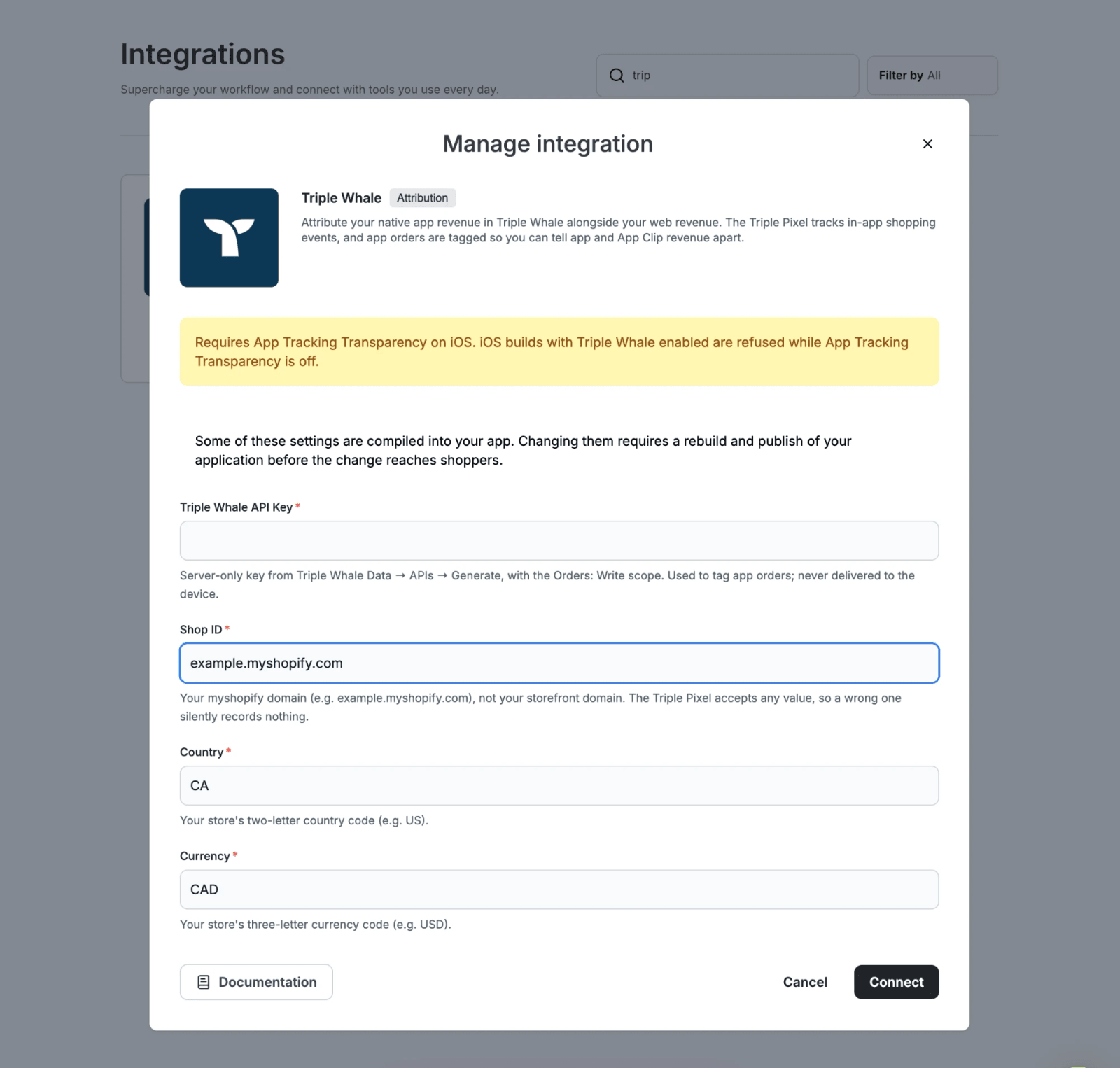
Reactiv fills in Shop ID, Country and Currency from your Shopify store, so usually you only need to paste the API Key. Check that the prefilled values are correct before you connect.
Step 3: Turn on App Tracking Transparency for iOS
Under Apple's rules, the Triple Pixel counts as tracking. Turn on the App Tracking Transparency step in your Customer Onboarding flow.
iOS builds with Triple Whale connected fail while App Tracking Transparency is off. Turn on the ATT onboarding step, or disconnect Triple Whale, then rebuild.
Step 4: Build and publish your app
The Shop ID, Country and Currency are built into your app. Your app starts sending events to Triple Whale only after you publish a new build.
Order tagging runs on Reactiv's servers, so it starts as soon as you connect. It doesn't need a new build.
Where Do I Find My Values?
Shop ID
Your Shop ID is your store's myshopify domain, e.g. example.myshopify.com. You can see it in your Shopify admin URL, or under Settings → Domains in Shopify. Enter it in lowercase.
The Triple Pixel accepts any Shop ID without an error. If you enter your storefront domain or make a typo, the app records nothing in Triple Whale. Reactiv only accepts a lowercase domain that ends in .myshopify.com to help prevent this.
Country and Currency
In Shopify, go to Settings → Store details.
- Country is your store address country. Enter its two-letter code, e.g.
US. - Currency is your Store currency. Enter its three-letter code, e.g.
USD.
What You'll See in Triple Whale
- Shopper events from the app (page views, product views, add to carts and purchases) appear in your existing Triple Whale dashboards. They are attributed the same way as your web traffic.
- App and App Clip orders are tagged, not created. Orders still arrive from Shopify as usual. Reactiv adds
reactiv_apporreactiv_clipto the order's custom string field, so you can split app and App Clip revenue from web revenue. Order totals and revenue never change. - Tags appear about 10 minutes after checkout. Triple Whale can only tag an order it has already received from Shopify, so Reactiv waits about 10 minutes before sending the tag. It sends the tag again about 3 hours after checkout in case Triple Whale was slow to receive the order. The second send doesn't duplicate the tag or overwrite any data.
- App Clip orders are tagged too. The App Clip doesn't run the Triple Pixel, so it sends no shopper events. Its orders still get the
reactiv_cliptag. - On iOS, events are sent only for shoppers who allow tracking. The app sends events after the shopper accepts the App Tracking Transparency prompt. Android sends events without a prompt. Order tagging doesn't depend on ATT.
Check That It Works
Triple Whale doesn't report errors for most setup mistakes, so check your Triple Whale workspace directly:
- Place a test order in your app.
- Wait at least 10 minutes.
- In Triple Whale, confirm the order shows
reactiv_app, orreactiv_clipfor an App Clip order. - Confirm app page views and add to carts appear next to your web traffic.
Additional Notes & Troubleshooting
Order tags never appear. Check these in order:
- The Shop ID is your myshopify domain, not your storefront domain.
- The API Key has the Orders: Write scope.
- The user who created the API Key still has access to your Triple Whale workspace. A revoked key is the most common cause when tags stop appearing.
No app events appear. Check that the Shop ID is correct, that you published a new build after connecting, and, for iOS, that the shopper accepted the tracking prompt.
My iOS build failed. Turn on the App Tracking Transparency step in Customer Onboarding, then rebuild.
Disconnecting turns the integration off. Disconnecting clears your values, so the integration is fully off. Your next build ships with the Triple Pixel switched off.
Documentation & Support
If you run into any issues connecting Triple Whale, contact Reactiv support and include your store's myshopify domain.