Setting up Firebase & GA4 with Reactiv
Introduction
Integrating Google Analytics (GA4) with your Reactiv mobile app allows you to track and analyze user interactions effectively. Reactiv's Firebase integration empowers you to leverage Firebase Cloud Messaging. This guide will help you set up and configure these integrations for your Reactiv app.
Prerequisites
Before starting, ensure you have the following:
- A Firebase account and project.
- Access to your Reactiv dashboard.
- Basic knowledge of Firebase and Google Analytics.
Step-by-Step Guide
Step 1: Create a Firebase Project
-
Go to the Firebase Console: Visit Firebase Console.
-
Create a Project: Click on "Add project" and follow the on-screen instructions to create a new project.
-
Register Your App: In the Firebase project overview, click on "Add app" and select the platform (iOS/Android). Follow the instructions to register your app.
Step 2: Download Firebase Credentials
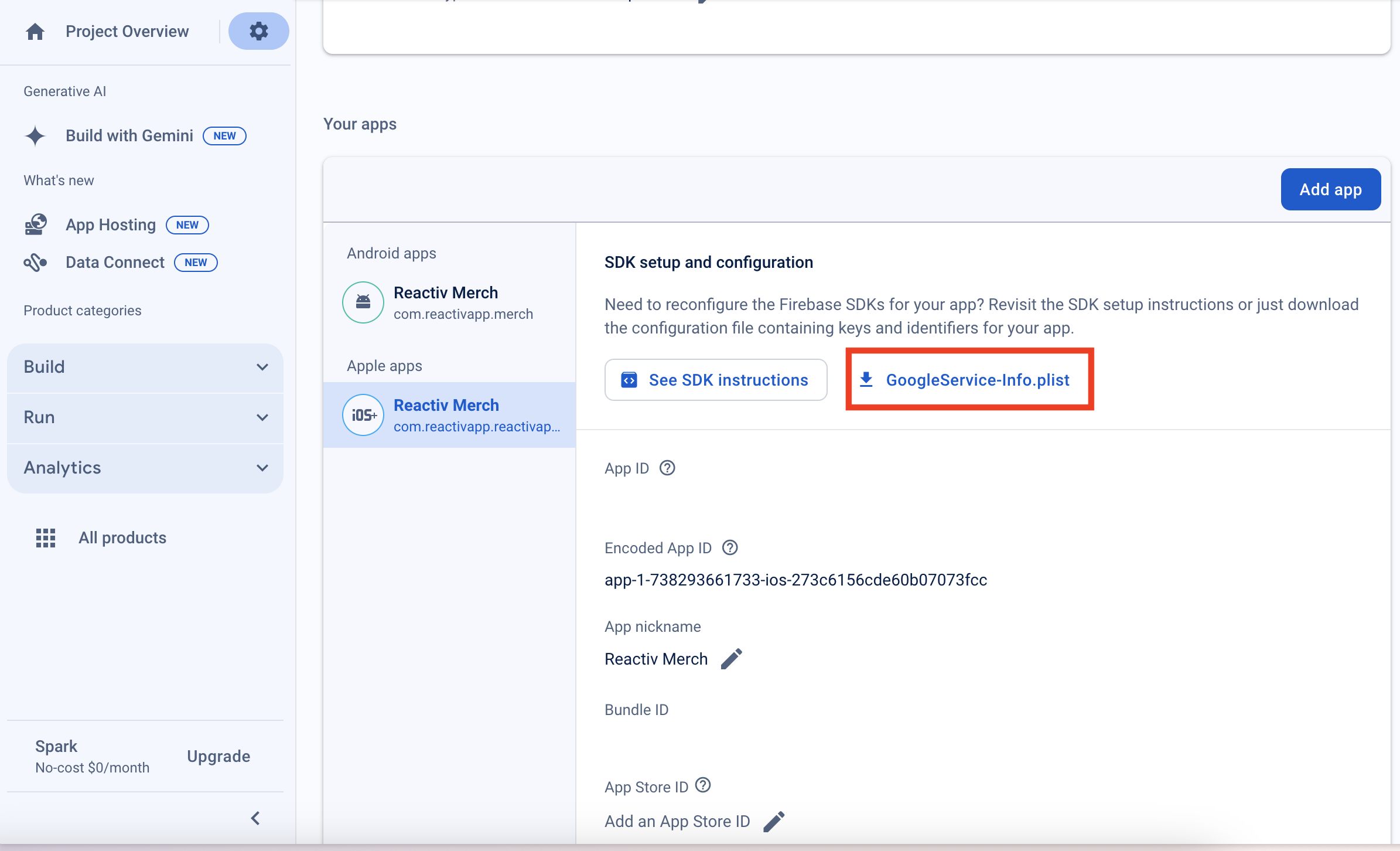
- Download the iOS Configuration File:
- Add your iOS app to firebase if your haven't already.
- Open to Firebase Console and Select your App
- Navigate to Project Settings > General
- Scroll down to Your Apps and select the iOS app.
- Download the GoogleService-Info.plist file
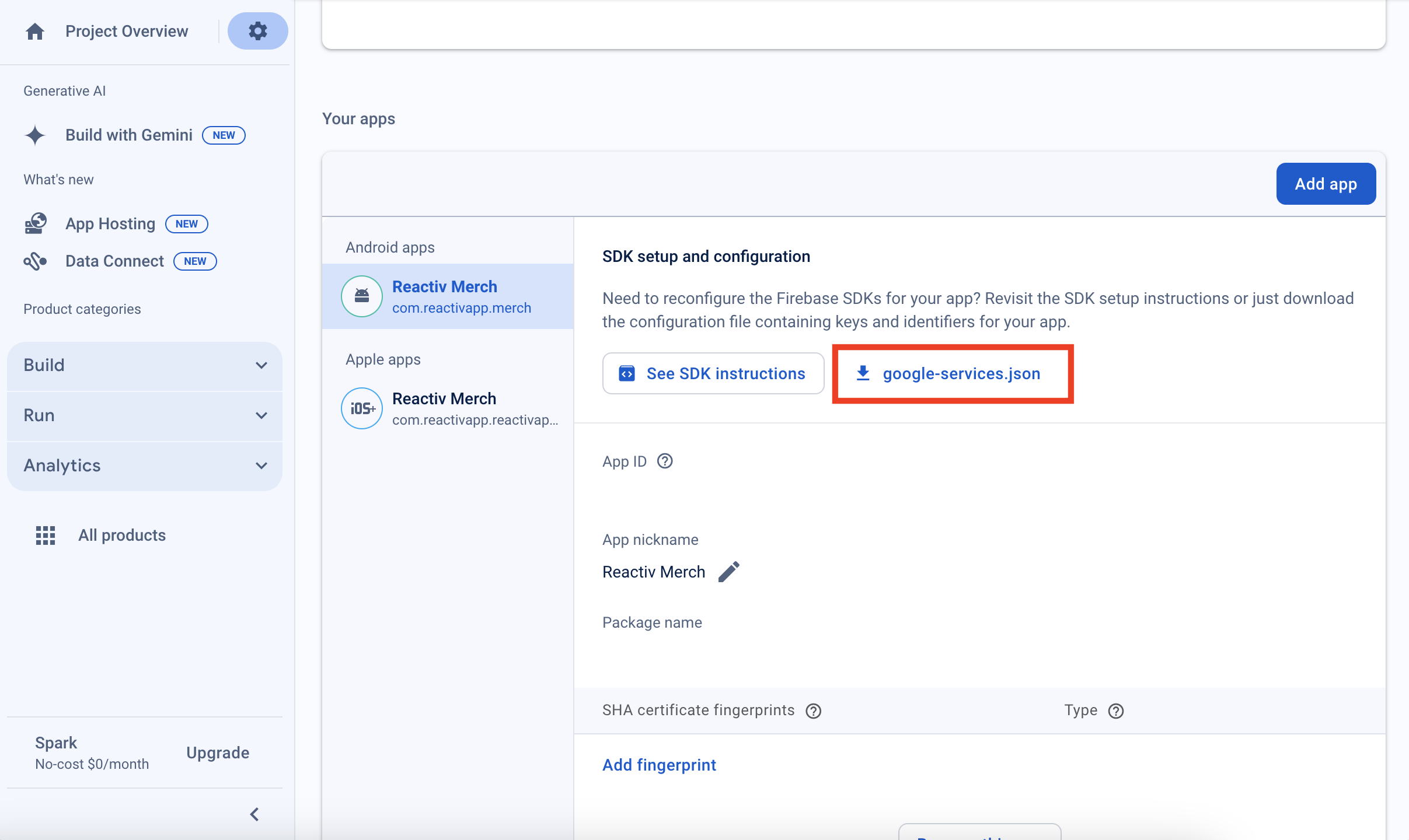
- Download the Android Configuration File:
- Add your Android app to firebase if your haven't already.
- Open to Firebase Console and Select your App
- Navigate to Project Settings > General
- Scroll down to Your Apps and select the Android app.
- Download the google-services.json file
Step 3: Connect GA4/Firebase with Reactiv
- Navigate to Shopify
- Open Reactiv - Mobile App Builder
- Navigate to Integrations
- Look for the Google Analytics (GA4) section and click on
Connect - You will receive the below Pop-Up where you will need to fill in the required fields; Firebase App ID (iOS), Measurement Protocol API Secret (iOS), Firebase App ID (Android), Measurement Protocol API Secret (Android)
How do I find my App ID?
In the above downloaded file (for iOS or Android), open it to find the APP_ID (for iOS, this will be inside the GOOGLE_APP_ID field; for Android, it will be inside the app_id field).
Where do I find my Measurement Protocol API Secret in Firebase?
Step 1: Go to Firebase Console
- Visit the Firebase Console.
- Select the project that contains the app for which you want to use the Measurement Protocol API.
Step 2: Access Google Analytics Settings
- In the left-hand sidebar, click on "Analytics".
- Select "Dashboard" (if not already in the dashboard).
- Click on the gear icon (⚙️) in the top-right corner of the Analytics dashboard to open the Analytics settings.
Step 3: Find Your Data Streams
- In the Analytics settings, under Property Settings, click on "Data Streams".
- Choose the Data Stream (iOS, Android, or Web) for which you want to find the Measurement Protocol API Secret.
Step 4: Access Measurement Protocol API Secret
- In the selected Data Stream, scroll down to the Measurement Protocol section.
- Click "Create" under the Measurement Protocol API Secrets section.
- Provide a name for the secret (e.g., "API Secret for My App").
- Click "Create".
Step 5: Copy the API Secret
- Once created, you will see the API Secret listed.
- Copy this API Secret — you'll use it to authenticate requests when sending data using the Measurement Protocol.
Step 4: Documentation and Support
- For understanding GA4: Checkout Google's official documentation.
- Contact Reactiv Support: If you encounter any issues, you can reach out to Reactiv Support for assistance.
Additional Notes
-
Make sure you have the appropriate permissions in your Firebase and Google Analytics accounts to access the necessary IDs and secrets.
-
Ensure that your Reactiv app is updated to the latest version to support the GA4 integration.
Supported Events & Mapping
All events listed below are forwarded to Google Analytics (GA4). Any personally identifiable information (PII) is fully redacted before events are processed or stored on Reactiv's servers.
| Reactiv Event | GA4 Event Name | Official GA4? |
| ScreenViewedEvent | screen_view | Yes |
| CollectionViewedEvent | view_item_list | Yes |
| ProductViewedEvent | view_item | Yes |
| SelectProductEvent | select_item | Yes |
| CartViewEvent | view_cart | Yes |
| CartItemAddedEvent | add_to_cart | Yes |
| CartDiscountCodeAddedEvent | view_promotion | Yes |
| CheckoutStartedEvent | begin_checkout | Yes |
| CheckoutSuccessEvent | purchase | Yes |
| CheckoutFailedEvent | checkout_failed | Custom |
| SearchAppliedEvent | perform_search | Custom |
| SearchFilterAppliedEvent | perform_filter | Custom |
| SearchSortAppliedEvent | perform_sort | Custom |
| WishListItemAddedEvent | add_to_wishlist | Yes |
| WishListItemRemovedEvent | remove_from_wishlist | Custom |
| CartItemUpdatedEvent | update_cart_item | Custom |
| CartItemRemovedEvent | remove_from_cart | Yes |
| CartDiscountCodeSeenEvent | viewed_promotion | Custom |
| CartDiscountCodeRemovedEvent | remove_promotion | Custom |
| AccountSignUpSuccessEvent | sign_up | Yes |
| AccountSignUpFailedEvent | sign_up_failed | Custom |
| AccountSignInSuccessEvent | login | Yes |
| AccountSignInFailedEvent | login_failed | Custom |
| AccountForgotPasswordEvent | forgot_password | Custom |
| AccountRecoveredPasswordEvent | recover_password | Custom |
| AccountAddressAddedEvent | add_address | Custom |
| AccountAddressUpdatedEvent | update_address | Custom |
| AccountAddressRemovedEvent | remove_address | Custom |
| ExternalLinkClickedEvent | click_external_link | Custom |
| WebpageViewedEvent | view_webpage | Custom |
| SubscribedToMarketingEvent | subscribe_marketing | Custom |
| QRCodeScannedEvent | scan_qr_code | Custom |
| PushPermissionAcceptedEvent | mobile_app_accept_push | Custom |
| PushPermissionDeclinedEvent | mobile_app_decline_push | Custom |
| LocationPermissionAcceptedEvent | mobile_app_accept_location | Custom |
| LocationPermissionDeclinedEvent | mobile_app_decline_location | Custom |
| AdsTrackingPermissionAcceptedEvent | mobile_app_accept_ads_tracking | Custom |
| AdsTrackingPermissionDeclinedEvent | mobile_app_decline_ads_tracking | Custom |
| ApplicationInstalledEvent | mobile_app_install | Custom |
| NotificationOpenedEvent | notification_opened | Custom |
| ApplicationOpenedEvent | mobile_app_open | Custom |
| ProductSharedEvent | share | Yes |