Integrations
Setting up Constructor Search & Collections with Reactiv
Prerequisites
Before enabling Constructor in Reactiv, make sure the following are complete:
-
Constructor Account
Your business must have an active Constructor account. -
Install Constructor’s Shopify Connector
- Install the Constructor Connect app from the Shopify App Store.
- The Constructor team will configure the app so your Shopify products are ingested into your Constructor index and available to Reactiv.
-
Enable the
__shopify_idField- In your Constructor dashboard, make sure the
__shopify_idfield is set to Displayable: true under Searchability and Displayability settings. - See Constructor’s documentation for more guidance.
- In your Constructor dashboard, make sure the
Step 1: Enter Constructor Credentials
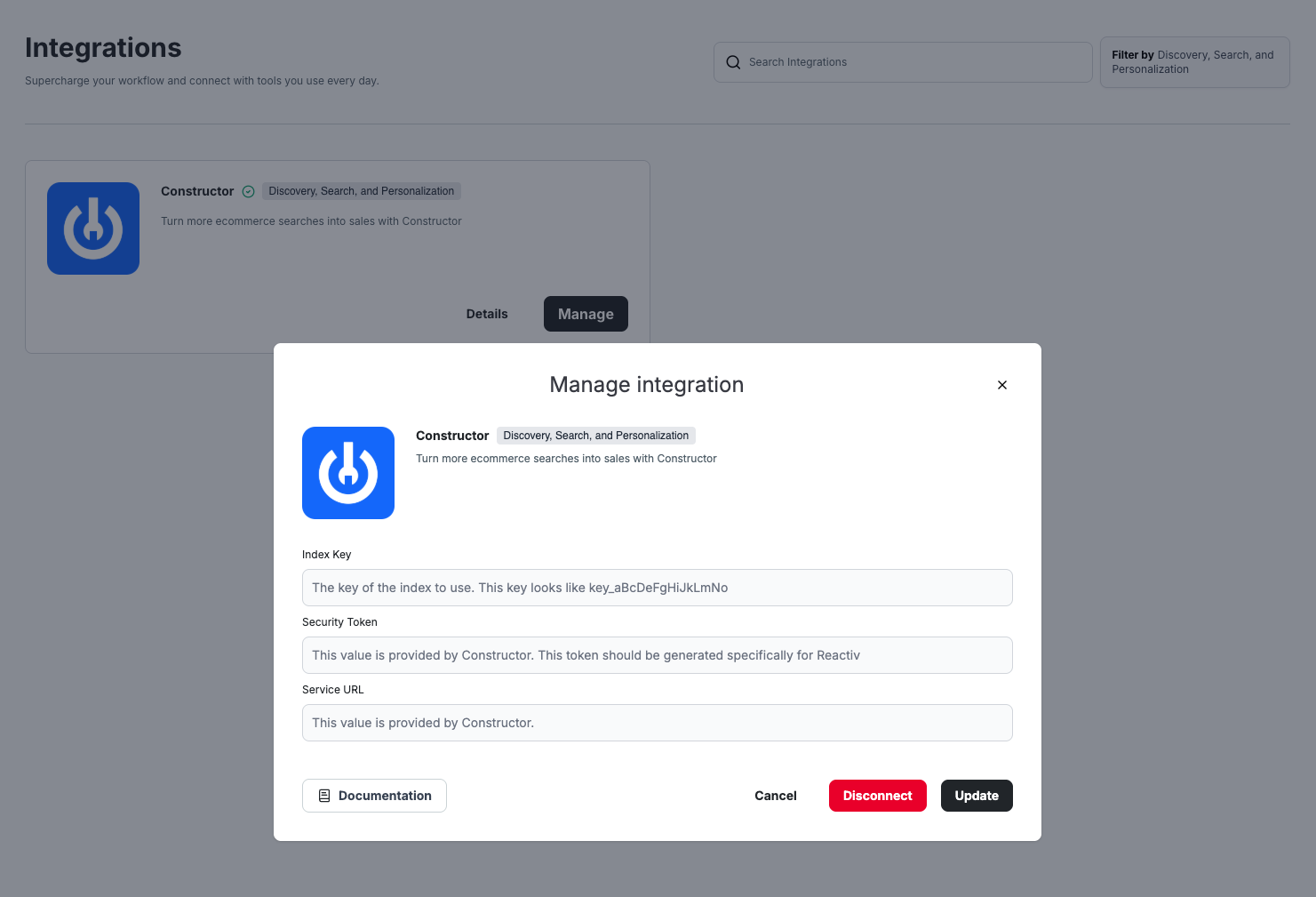
No matter which feature you plan to use, you’ll first need to enter your Constructor credentials:
-
In the Reactiv Dashboard, go to Integrations from the left-hand navigation.
-
Enter the values provided by Constructor:
- Index Key: Found in your Constructor dashboard under index listings (e.g.,
key_abc123). - Security Token: Provided by the Constructor team and unique to your Reactiv integration.
- Service URL: Provided by the Constructor team.
- Index Key: Found in your Constructor dashboard under index listings (e.g.,
-
Click Save.
Step 2: Set Constructor as Provider
- In the Reactiv Dashboard, click your store logo to open App Settings in the App Studio.
- Navigate to Integrations.
- Under Discovery, Search, and Personalization, select Constructor as your provider.
- Click Save.
Once enabled, your app’s search and personalization will run through Constructor.
Troubleshooting Discovery, Search, and Personalization
If your search or personalization features aren’t working as expected:
- Check Constructor Credentials: Go to Integrations in the left-hand navigation and confirm your Index Key, Security Token, and Service URL match Constructor’s values.
- Confirm Shopify Connector is Active: Verify the Constructor Connect app is installed and configured correctly.
- Verify the
__shopify_idField: Make sure it’s marked Displayable: true in your Constructor dashboard. - Fallback Behavior: If Constructor cannot be reached or is misconfigured, Reactiv will automatically fall back to Shopify’s default search.
Next Steps
Once setup is complete, you’re all set to:
- Test your search and collections in the preview app.
- Work with Constructor’s team if you need new pods or support.
Was this page helpful?