Integrations
Setting up Searchspring Search & Collections with Reactiv
Introduction
Enhance your Reactiv mobile app Search and Product Collections with Searchspring. When enabled, Searchspring will power ordering of products in search results and collections, as well as sorting and filtering on search results and collections.
Prerequisites
Athos Account -Athos is enabled on your online store. Contact Athos for assistance with online store setup
Integration Credentials - Open the Athos App or log into the Searchspring Management Console and obtain the following:
- Searchspring Site ID
- Product ID Field - The field name that contains the Shopify product ID (e.g. "parentId")
Step-by-Step Setup
Step 1: Enable Searchspring Integration
-
Log in to your Reactiv dashboard. Navigate to the Integrations page.
- Find SearchSpringunder the Discovery, Search & Personalization section.
- Click on the Connect button to start the setup.
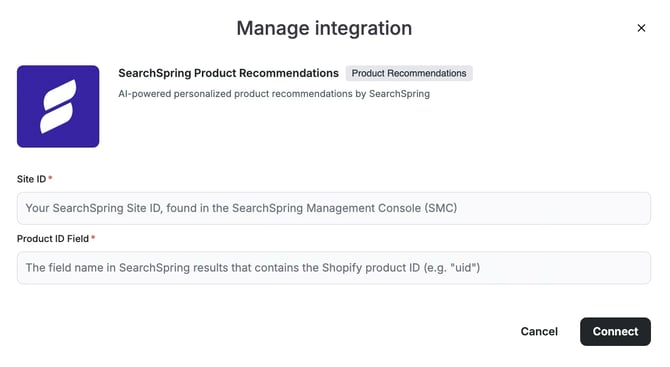
- Enter the Site ID, Product ID Field and Variant ID Field
- Click Connect
Step 2: Set Searchspring as Provider
- In the Reactiv Dashboard, click your store logo to open App Settings in the App Studio.
- Navigate to Integrations.
- Under Discovery, Search, and Personalization, select Searchspring as your provider.
- Click Save.
Once enabled, your app’s search and collections will be powered by Searchspring.
Next Steps
Once setup is complete, you’re all set to test your search and collections in the preview app.
Was this page helpful?