Building Your App
How to Setup Dynamic Collection Tabs from Shopify Metafields in the Reactiv Mobile App
Understand the goal of the feature
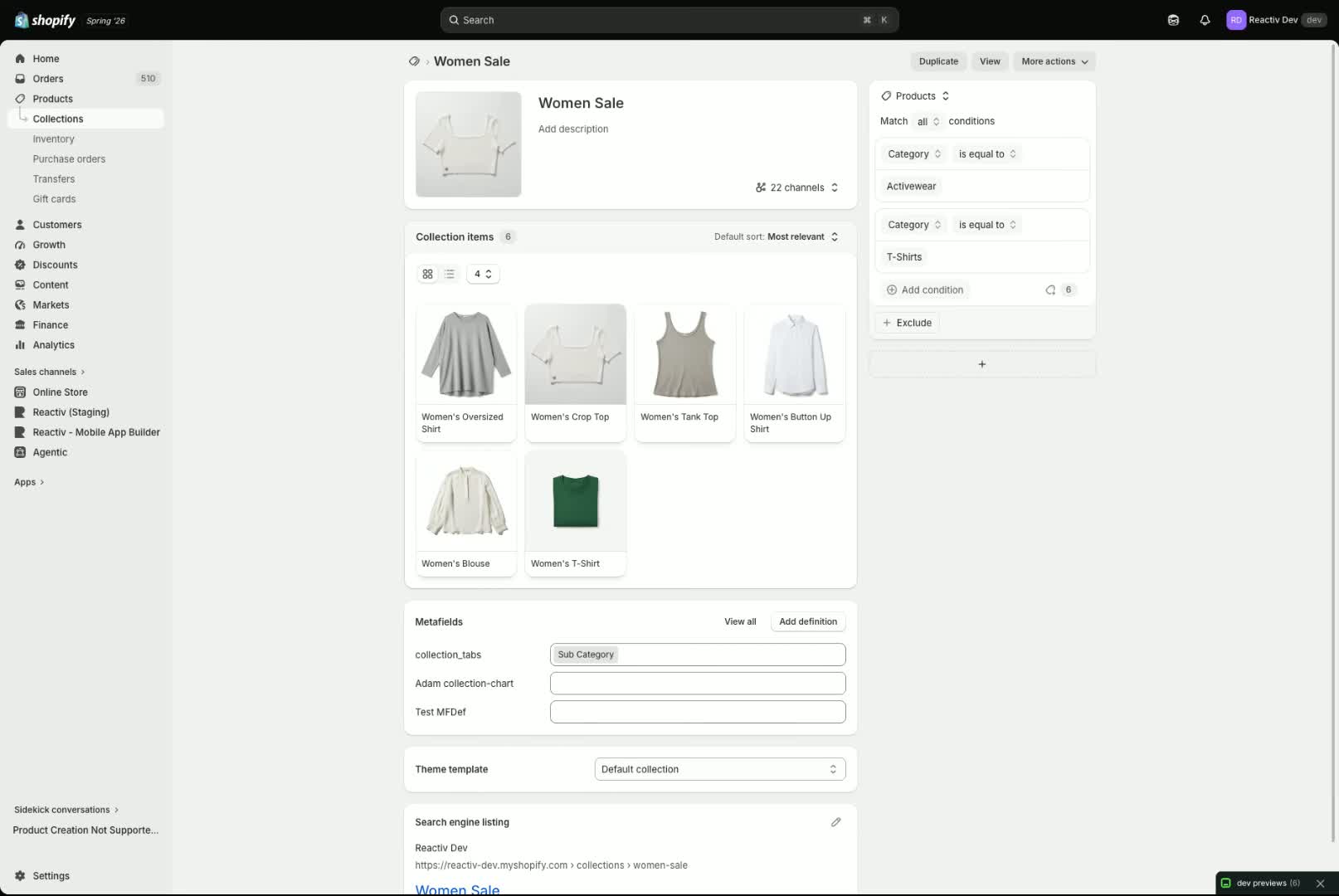
- The purpose of Dynamic Collection is to automatically populate subcategory links / collection tabs on a category or product listing page.
- Instead of manually building the navigation in the app, the mobile app can read the same Shopify metafield that powers the website.
- This keeps the website and mobile app collection navigation in sync.
Step 1: Prepare the Shopify metafield or metaobject
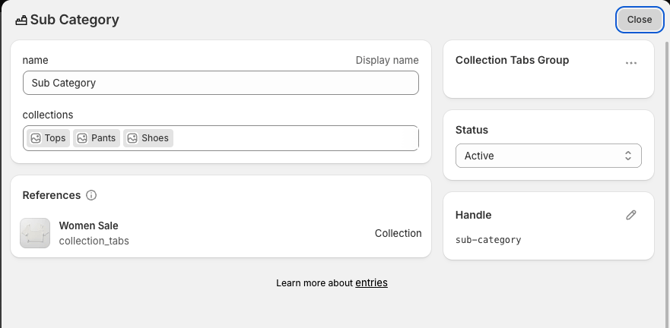
- In Shopify, create the metafield or metaobject that stores the list of collections you want to display.
- In the example, a Women’s Sale collection already exists and contains products.
- The metafield should represent the collection links that the mobile app will later use to generate the subcategory buttons.
Step 2: Allow the mobile app to read the collection metafield
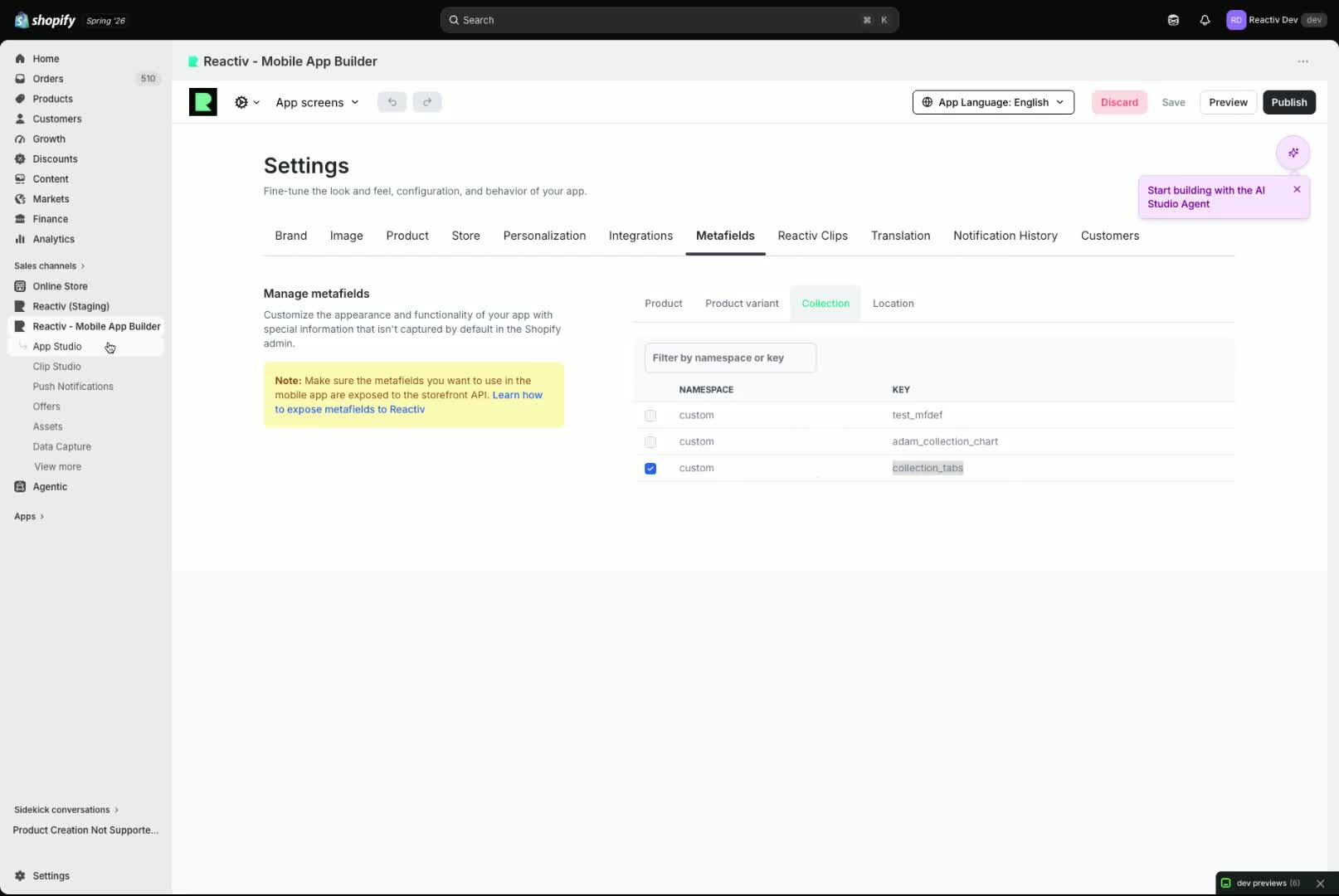
- In Reactive Mobile App Builder, go to App Settings.
- Open Metafield settings.
- Under Collections, enable the metafield that stores the list of collections.
- Save the setting so the app is allowed to access that data.
Step 3: Open the Product Listing page in App Studio
- After saving the metafield permissions, go to App Studio.
- Use the page selector to open Product Listing.
- Change the preview to the specific collection you want to test, such as Women Sale or another collection page.
Step 4: Add the Collection Tabs Slider component
- On the Product Listing page, add the Collection Tabs Slider component.
- Place it at the top of the page, in the header area, where the subcategory links should appear.
- This component is what will display the collection buttons/tabs to users.
Step 5: Choose between manual or metafield-driven collections
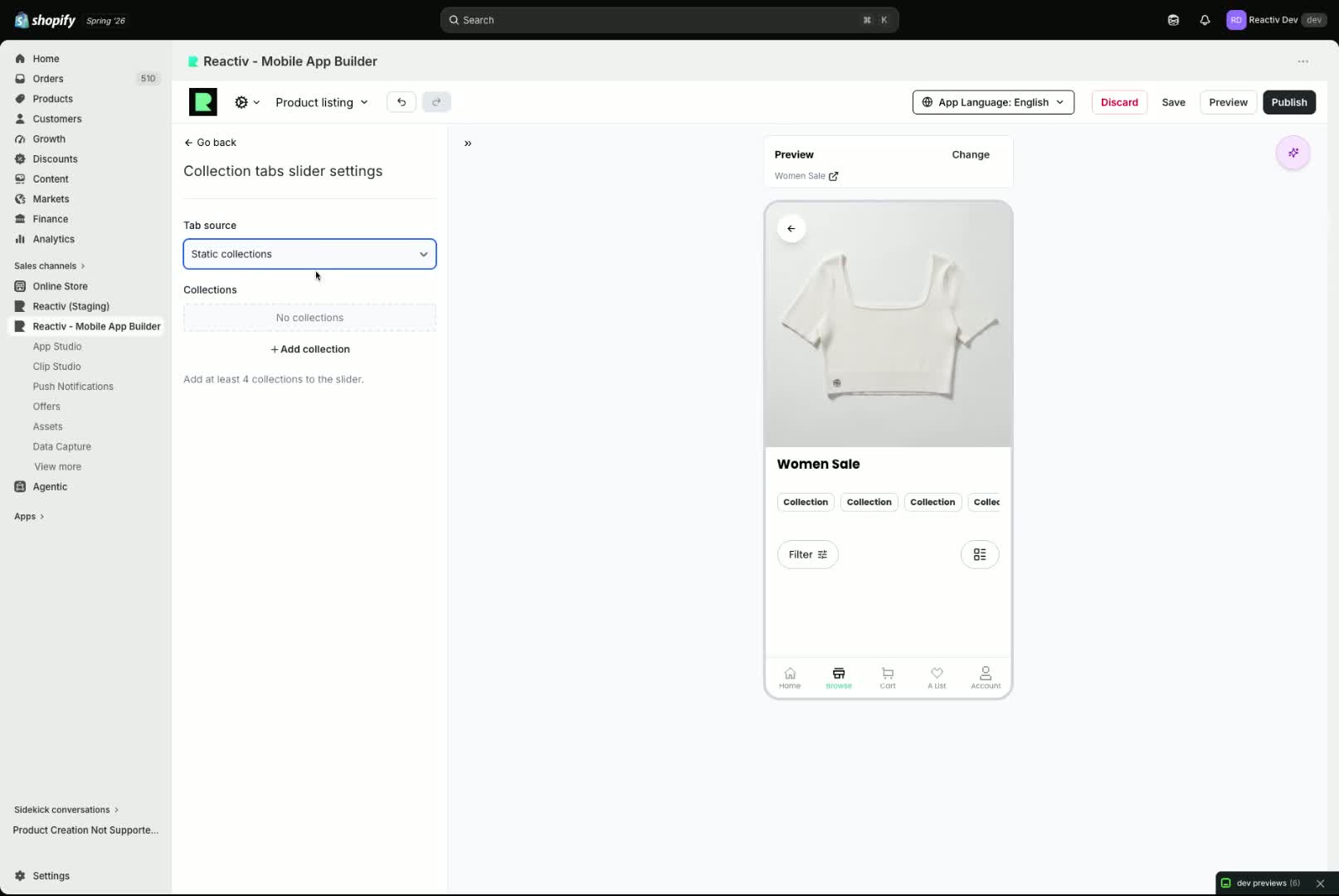
- The component gives you two ways to populate the tabs:
- Static/manual collections: manually choose the collections to show.
- Metafield-driven collections: pull the collection list automatically from Shopify.
- For this workflow, choose the metafield-driven option.
Step 6: Select the custom collection tabs metafield and save
- Choose Custom Collection Tabs from the metafield options.
- Click Save.
- The preview in dashboard will not show the final result, but the configuration is now set.
Step 7: Verify the dynamic behaviour in the mobile app
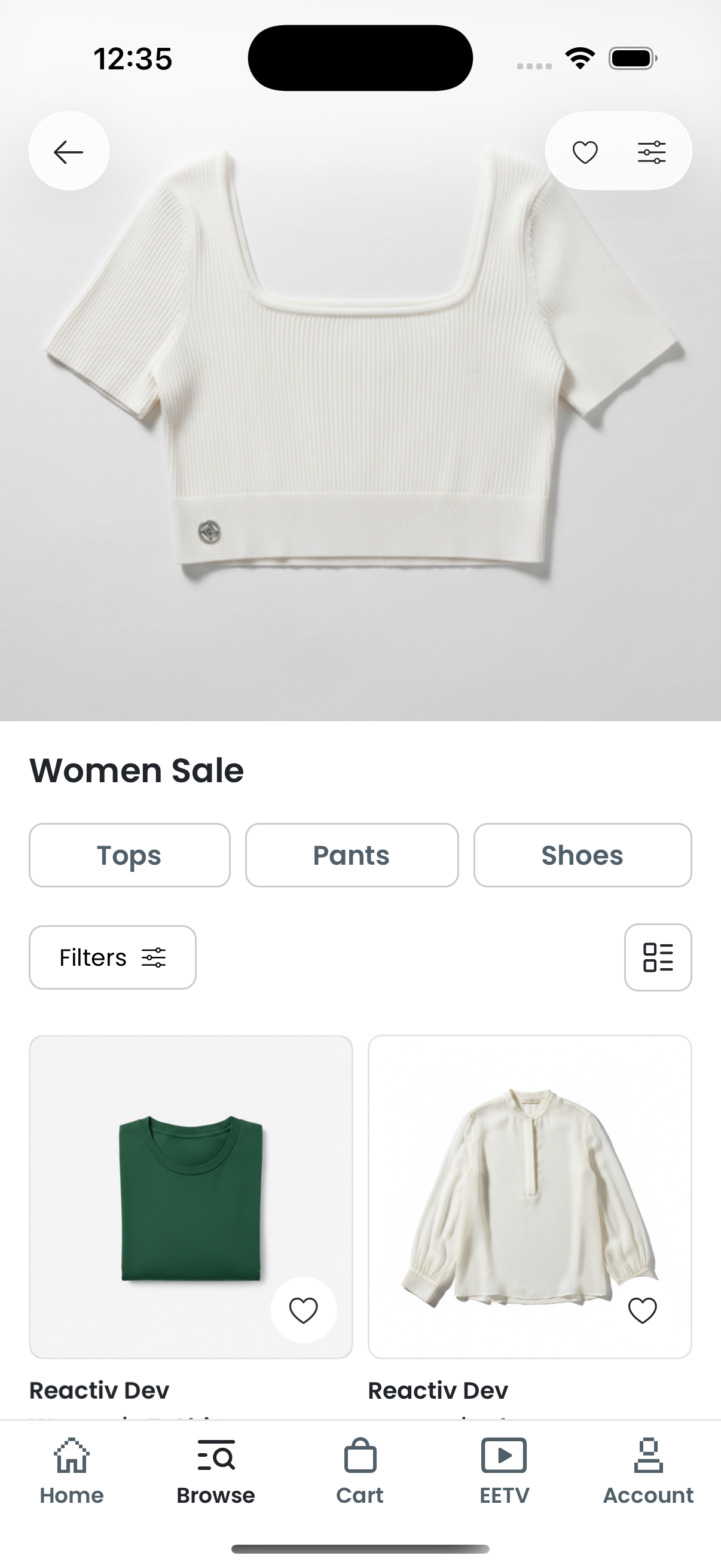
- When the mobile app loads, it will dynamically pull the values from the selected metafield.
- Those values will appear as buttons/tabs on the collection page.
- Tapping a button takes the user to the corresponding collection page.
Was this page helpful?