Integrations
Setting up Loop Subscriptions with Reactiv
Before You Start
Before setting up the integration, make sure you have the following:
- Loop Subscriptions app installed on your Shopify store.
- ALoop Account account linked to your Shopify store.
- An API access token from Loop with the required permissions.
If you haven’t created a Loop Account Center account yet, follow Bold’s guide here.
Step 1: Generate Your Loop API Access Token
- Log in to your Loop Subscriptions admin dashboard.
- Click on the Settings tab located in your side navigation bar.
- Select Manage API tokens from the admin settings section.Click on the Generate Token button.
- Enter a Name for your token to track what system or service will be using it.
- Select your required Scopes (e.g., choose between "Read only" or "Read & write" access depending on your integration needs).
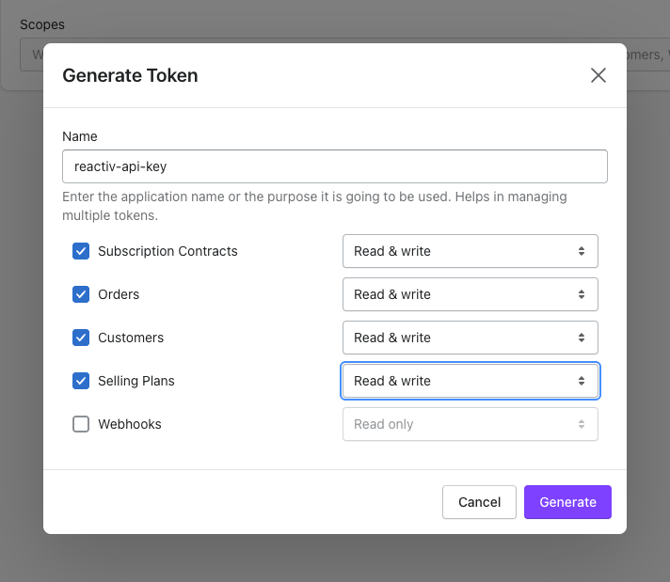
- Click Generate to finalize the token creation.
- Click Show token to reveal the unmasked code, then copy it immediately.
Step 2: Connect Loop Subscriptions in Reactiv
- In your Reactiv Dashboard, go to Integrations.
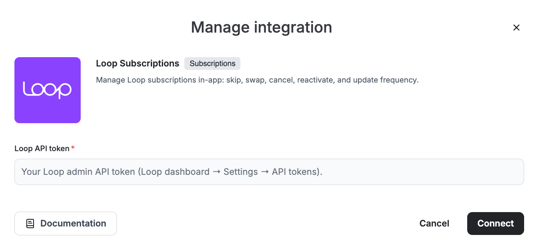
- Find Loop Subscriptions and click Install.
- Paste your API access token in the field provided.
- Click Connect to complete the setup.
Step 3: Set Loop as Provider
- In the Reactiv Dashboard, click your store logo to open App Settings in the App Studio.
- Navigate to Integrations.
- Under Subscriptions, select Loop as your provider.
- Click Save.
Once saved, Reactiv will automatically sync your subscription data from Loop. You’ll be able to use subscription status and history in your Reactiv campaigns and automations.
📝 Make sure you click Save and Publish, and verify your integration.
Troubleshooting
If your connection fails:
- Double-check that your API token is valid and has the correct scopes.
- Confirm your Shopify store is linked to your Bold Account Center.
- Try reconnecting the integration in Reactiv.
Was this page helpful?