Setting up BetterReviews with Reactiv
This guide will help you integrate BetterReviews with your Reactiv Mobile App. BetterReviews uses AI-guided conversations to collect richer reviews — use cases, comparisons, and specifics that a blank review form rarely captures — and displays them natively in your app.
Prerequisites
Before setting up the BetterReviews integration, ensure the following:
- You have the BetterReviews app installed on your Shopify store, on a plan that includes the Reactiv integration.
- You are signed up for a Reactiv Plan.
- Your Reactiv Mobile App is already set up and functioning.
Step 1: Generate your BetterReviews API Key
- In your Shopify admin, open the BetterReviews app under "Apps".
- Go to Settings, then select the Integrations tab.
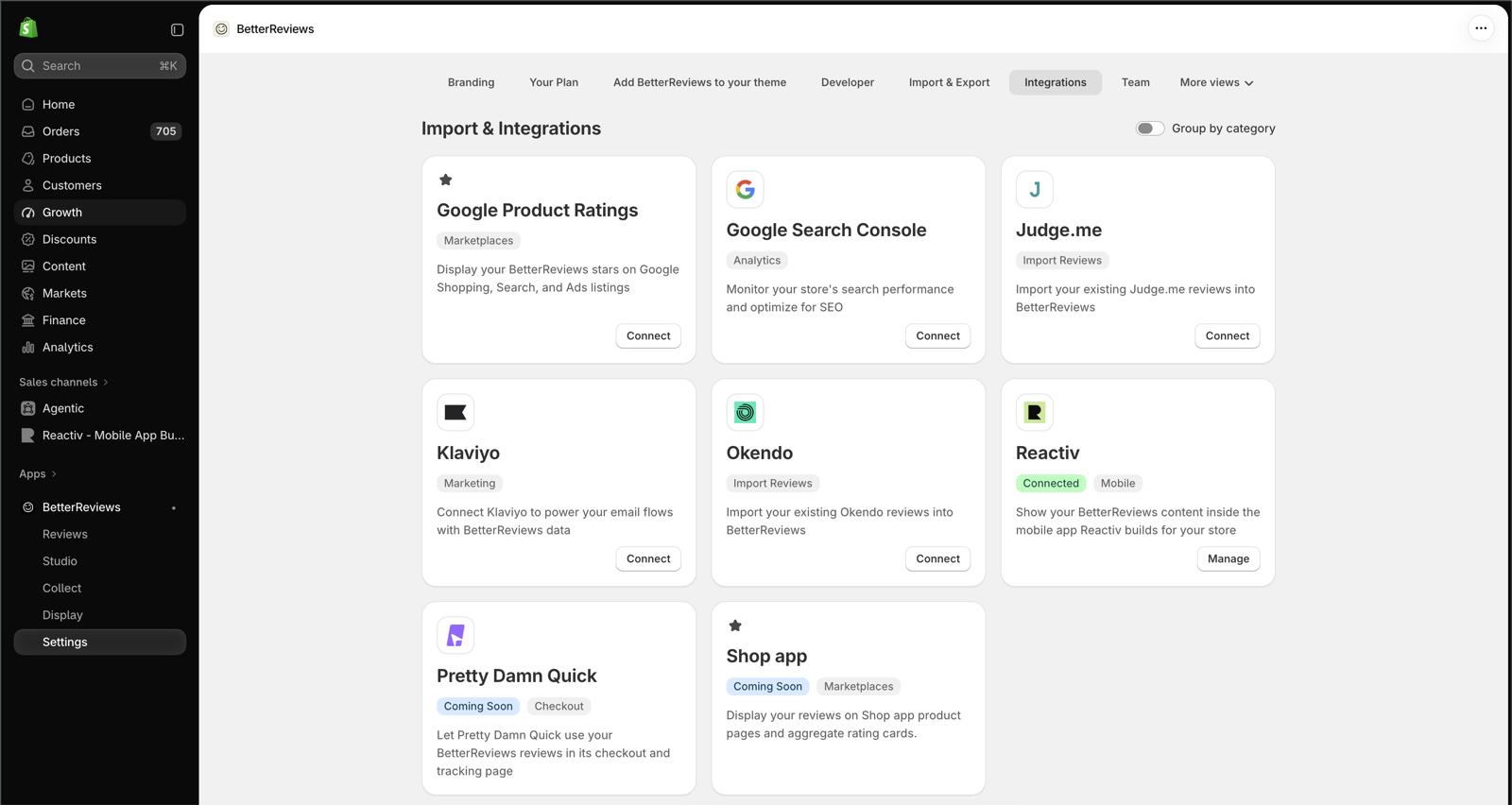
- Find the Reactiv card ("Show your BetterReviews content inside the mobile app Reactiv builds for your store") and click Connect.
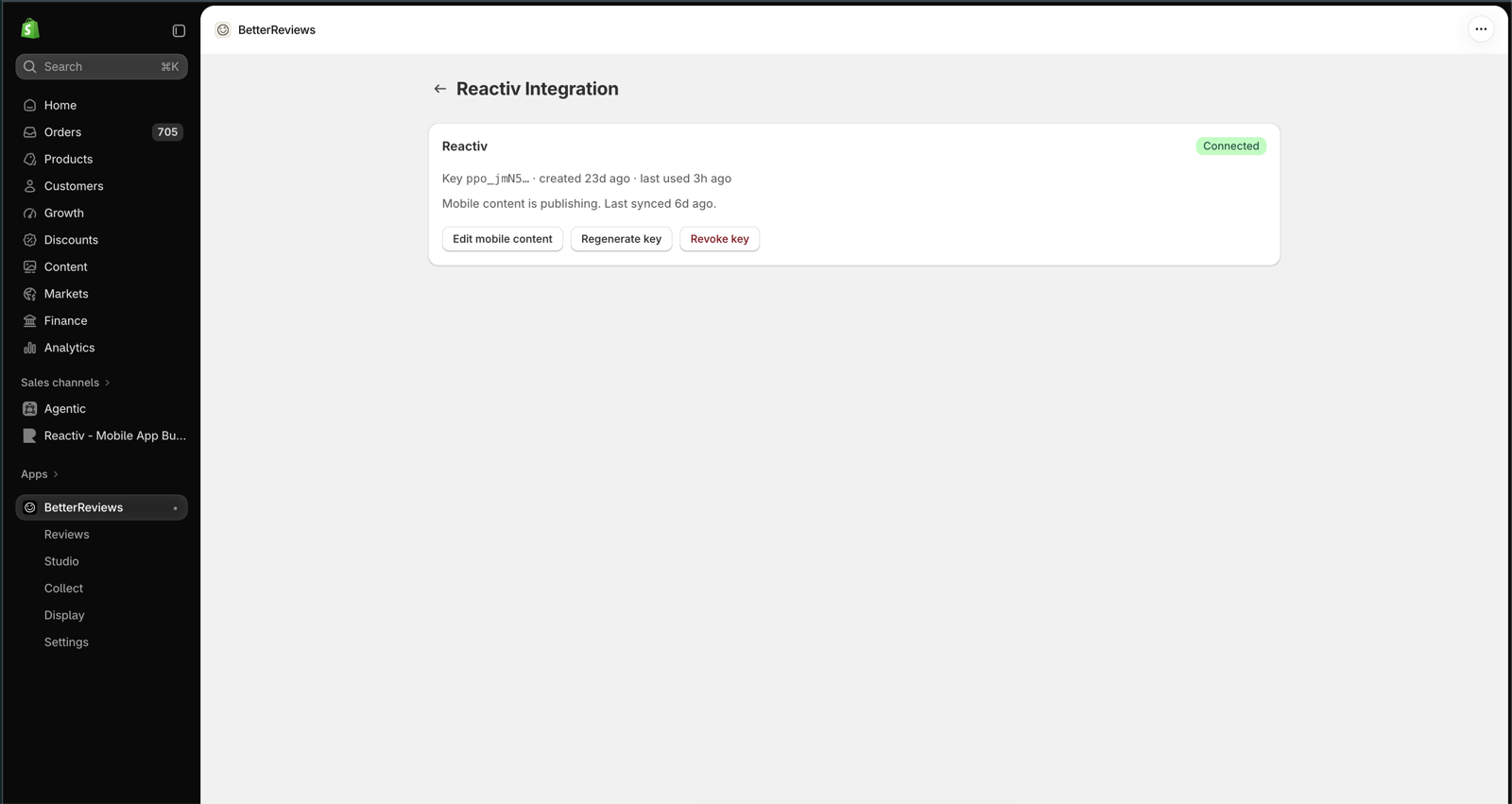
- On the Reactiv Integration page, generate your API Key and copy it. The key starts with
ppo_. Copy it somewhere safe right away, since only the beginning of the key is shown afterwards.
Once generated, this page shows the key's status along with options to Edit mobile content, Regenerate key, or Revoke key.
📝 Generating the key also tells BetterReviews to start syncing review data (ratings, review counts, and theme) to your Shopify products. This can take a few minutes after the key is first created.
Step 2: Access the Integrations Page
- Log in to your Shopify admin dashboard.
- In the left-hand menu, locate Reactiv - Mobile App Builder under the "Sales channels" section.
- Click on Reactiv - Mobile App Builder to open the Reactiv dashboard.
- Select Integrations from the sidebar.
Step 3: Locate BetterReviews
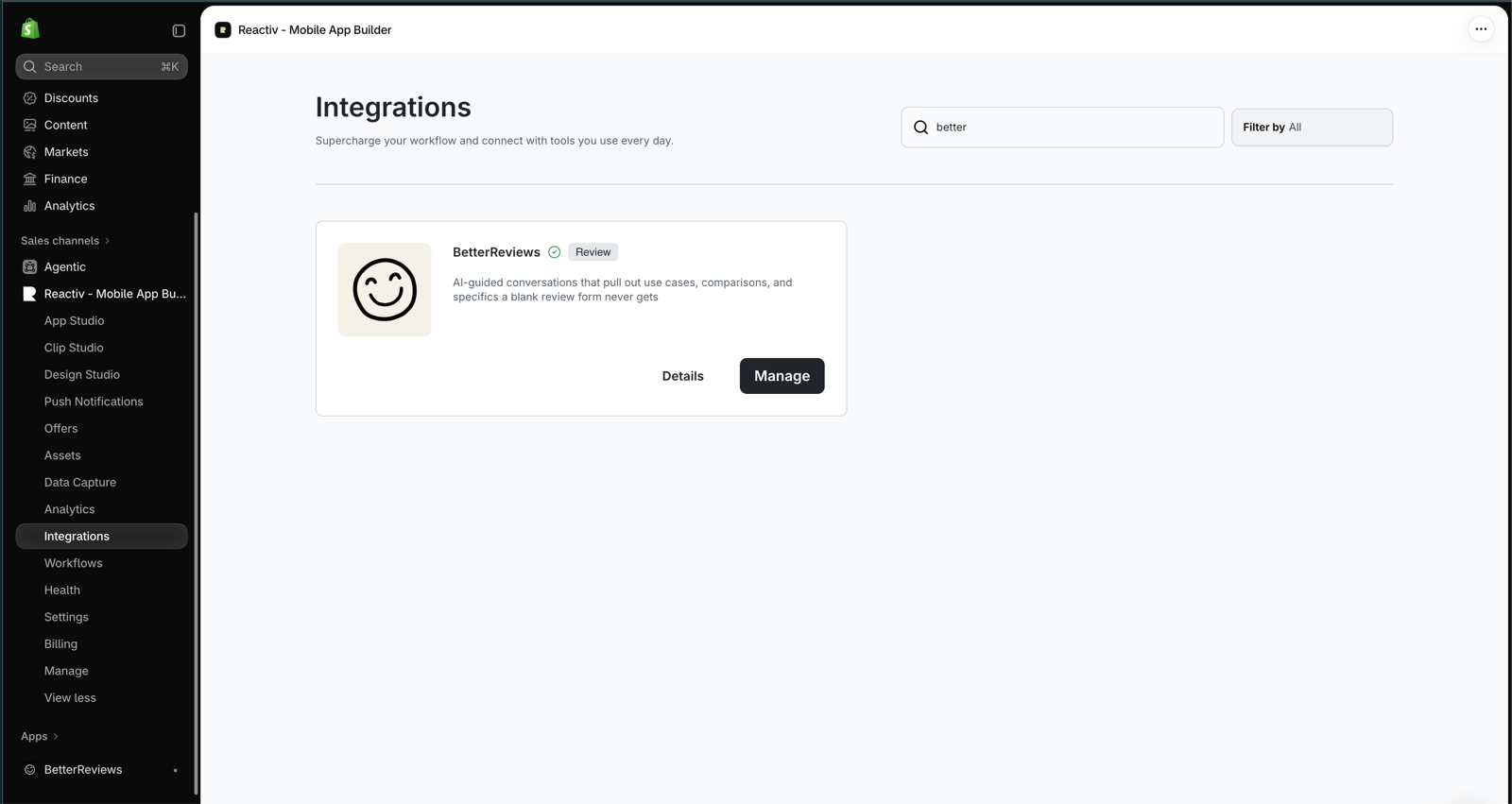
- On the Integrations page, use the search bar or scroll to find BetterReviews under the "Review" category.
- Click the Connect button on the BetterReviews card to open the integration settings. If BetterReviews is already connected, the button says Manage instead.
Step 4: Connect BetterReviews to Your Mobile App
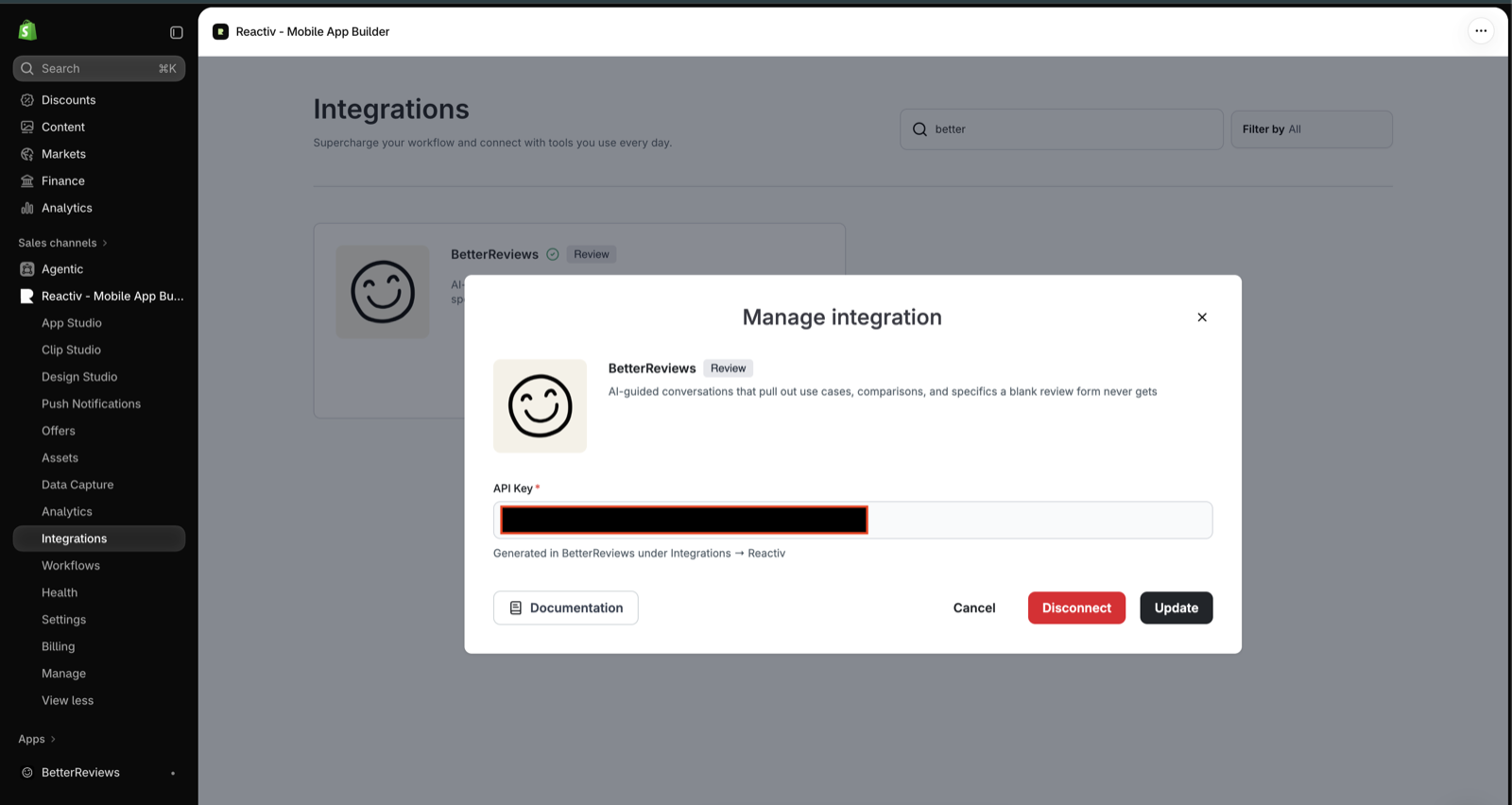
- In the BetterReviews integration popup, you will see a single field: API Key.
- Paste the key you copied in Step 1 into the API Key field.
- Click Connect to save the integration. BetterReviews will now be connected to Reactiv.
To change your key later, reopen this popup with Manage, paste the new key, and click Update.
Step 5: Set BetterReviews as the Product Review Provider
If you don't have another review integration connected, BetterReviews is set as your provider automatically. If you are switching from another review app (for example, Judge.me or Okendo), set it manually:
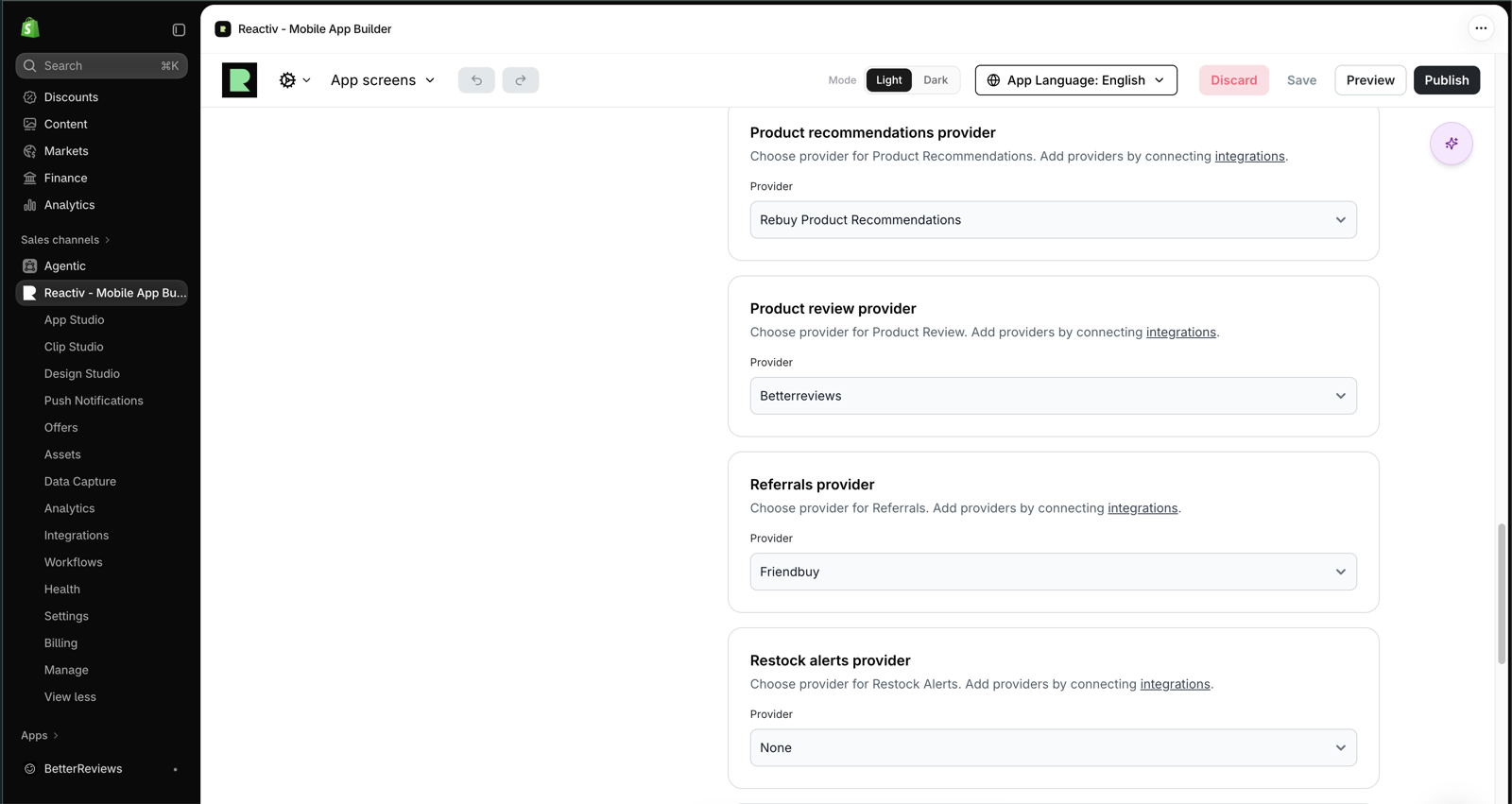
- On the Reactiv Dashboard, navigate to Settings, then click the Integrations tab.
- Under Product review provider, set the Provider to Betterreviews.
- Make sure Show ratings and Show reviews are turned on.
- Click Save.
Step 6 (Optional): Add the BetterReviews Content Block to your PDP
BetterReviews can also show a summary of what customers are saying, along with key product highlights, on your product pages.
- In the Studio, open your Product Detail Page (PDP).
- Add the BetterReviews content block section and position it where you'd like it to appear.
- The content of this section is managed in BetterReviews, using Edit mobile content on the Reactiv Integration page (Settings → Integrations → Reactiv → Manage). If a product has no content block configured in BetterReviews, the section won't appear for that product.
Step 7: Verify the Integration
- Return to the Studio and preview your mobile app.
- Open a product with reviews and confirm that star ratings and the Customer Reviews section are displaying as expected.
- If any issues arise, recheck your BetterReviews settings and make sure you clicked Save.
Step 8: Display your Reviews & Star Ratings
- Make sure that star ratings are enabled in the PDP settings.
- You can display star ratings in the following screens:
📝 Always save and publish your work in the dashboard before checking the mobile app.
What your shoppers will see
- Star ratings and review counts on product pages and product listings.
- Customer Reviews section with your average rating, a star breakdown, and a paginated list of reviews.
- Filtering by star rating, reviews with photos, and keyword search.
- Sorting by Most relevant, Most helpful, Newest, Highest rated, and Lowest rated.
- Review photos in a gallery and full-screen viewer.
- Verified Buyer badges and helpful voting.
- Write a review — opens BetterReviews' guided review experience inside the app. You can turn this off in the PDP settings if you don't want shoppers writing reviews from the app.
- Styling that matches the theme you configured in BetterReviews, in both light and dark mode.
Limitations
- Media Support: Review photos are supported. Review videos are not currently displayed in the Reactiv Mobile App.
- Site Reviews: BetterReviews only supports product reviews. Store-wide (site) reviews and Q&A are not supported.
- Reactiv Clips: BetterReviews reviews are not currently shown in Reactiv Clips.
- New reviews: Reviews submitted from the app go through BetterReviews moderation and won't appear right away.
- App version: Your app needs a recent build to display BetterReviews. If reviews don't appear in your live app but do appear in preview, contact Reactiv support to confirm your app is up to date.
Troubleshooting
- "API Key must start with ppo_": Make sure you copied the key from Settings → Integrations → Reactiv inside BetterReviews, not a different key.
- Star ratings show, but the review list is empty: Your API Key was likely regenerated or revoked in BetterReviews. Click Regenerate key on BetterReviews' Reactiv Integration page, then open BetterReviews on Reactiv's Integrations page, click Manage, paste the new key, and click Update.
- Reviews stopped loading after a plan change: Confirm your BetterReviews plan still includes the Reactiv integration.
- No star ratings anywhere: BetterReviews may not have finished syncing review data to your products yet. Wait a few minutes after generating your key, then check again. If ratings still don't appear, contact BetterReviews support.
- Reviews from another app are still showing: Check that Product review provider is set to BetterReviews (Step 5), and that your PDP doesn't override the review provider.
- Can't disconnect BetterReviews: An integration that is set as your review provider can't be disconnected. Switch the Product review provider to another app first, then disconnect.
For more detailed information on managing and customizing your reviews, please contact the BetterReviews team.