Integrations
Setting up Swym Back In Stock Alerts with Reactiv
Prerequisites
Before enabling Swym Back in Stock in Reactiv, make sure the following are complete:
- Swym Account
You must have an active Swym account with Back in Stock enabled. - Required Credentials
Collect the credentials provided by Swym:- App ID
- API Key
- Service URL
📩 If you do not have the above credentials, contact SWYM support at support@swymcorp.com.
Step 1: Enter Swym Credentials in Integrations
- In the Reactiv Dashboard, go to Integrations from the left-hand navigation.
- Click Integrations.
- Select Swym Back in Stock as your provider.
- Enter your App ID, API Key, and Service URL.
- Choose your preferred communication method (Email or SMS).
- Click Save.
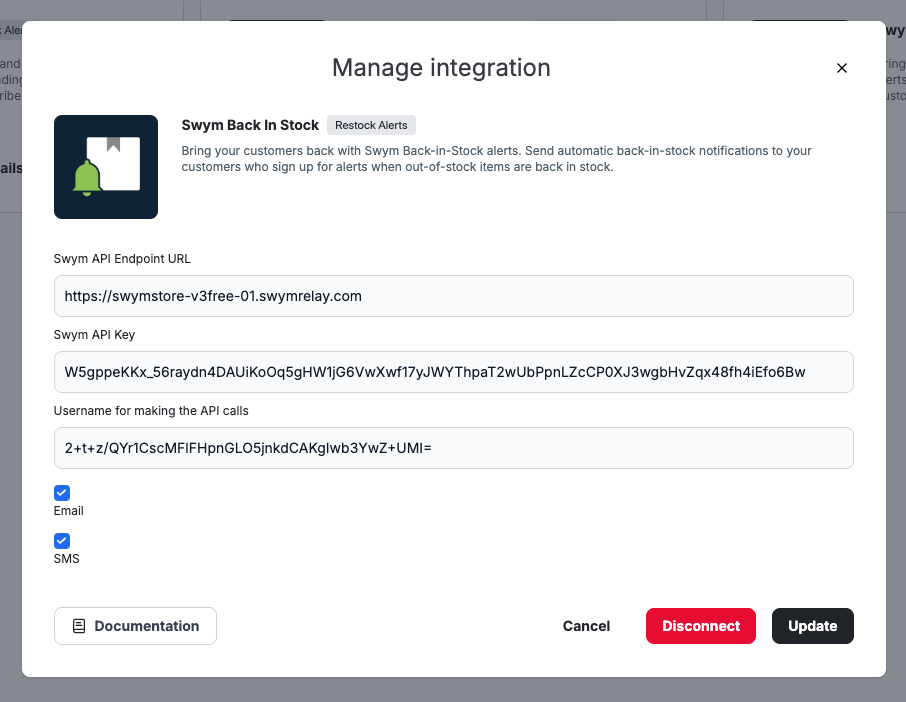
Step 2: Select Swym as Provider in App Settings
- In the Reactiv Dashboard, click your store logo to open App Settings in the App Studio.
- Navigate to Integrations.
- Under Back in Stock, select Swym as your integration of choice.
- Click Save.
Once enabled, your customers can sign up for restock alerts, and Swym will handle sending notifications.
Troubleshooting Swym Back in Stock
If your back-in-stock alerts aren’t working as expected:
- Check Credentials: Make sure your App ID, API Key, and Service URL are entered correctly.
- Verify Provider Selection: Ensure Swym is selected in both Integrations and App Settings > Integrations.
- Check Communication Method: Confirm you’ve selected the correct method (Email or SMS).
- Confirm Inventory Updates: Alerts will only trigger when a product moves from out-of-stock to in-stock in Shopify.
- Contact Swym Support: If issues persist, confirm with Swym that your account has Back in Stock enabled.
Still stuck? Contact Reactiv support—we’re here to help!
Was this page helpful?