Building Your Reactiv Clips
Add Reactiv's Header Banner to your Shopify Store
How to Enable the Header Banner in Your Shopify Theme
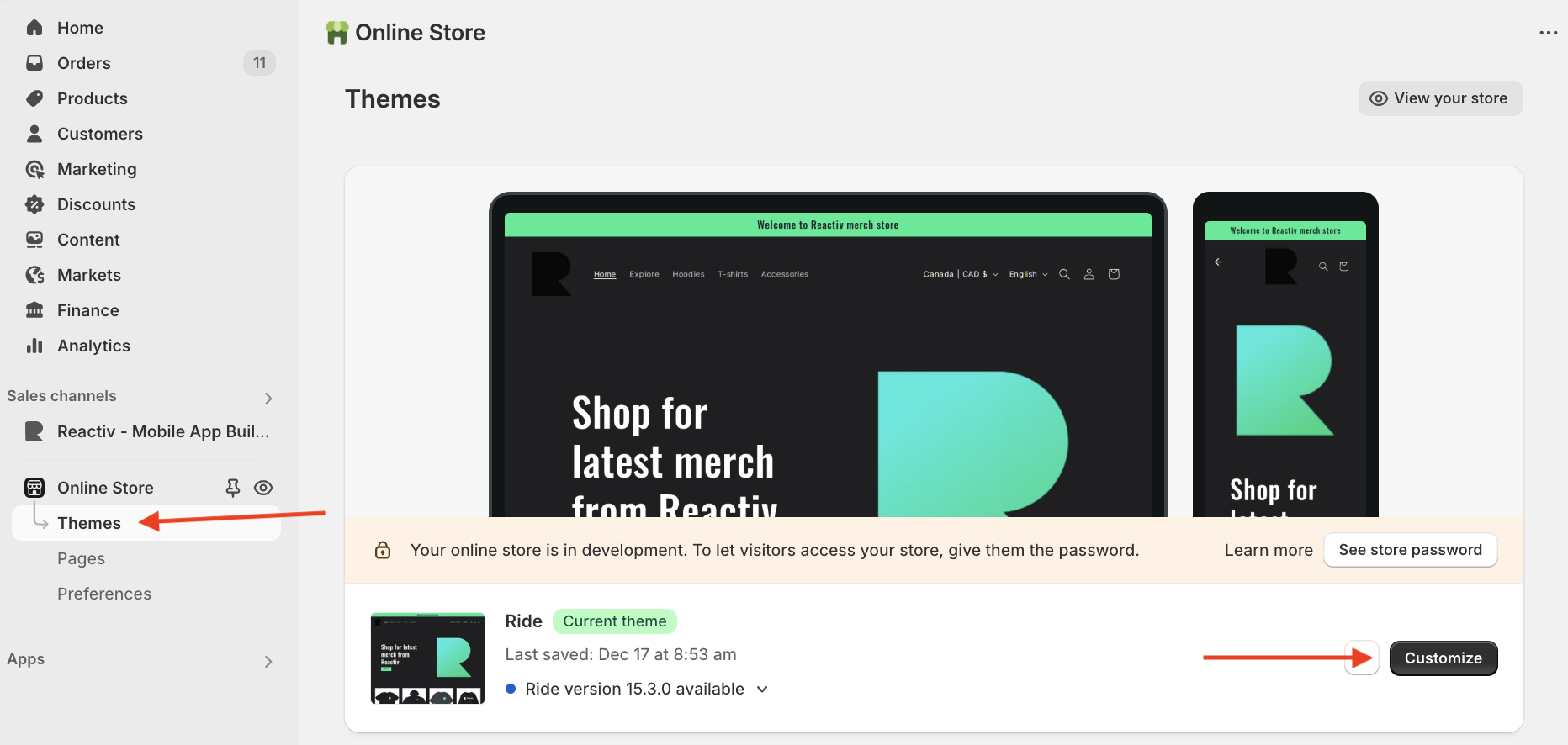
- Log in to your Shopify admin.
- In the left sidebar, click the Sales channels and search for Online Store.
- Online Store will appear in the left bar, then select Themes right under.
- In the main window, under your current theme, click the Customize button.
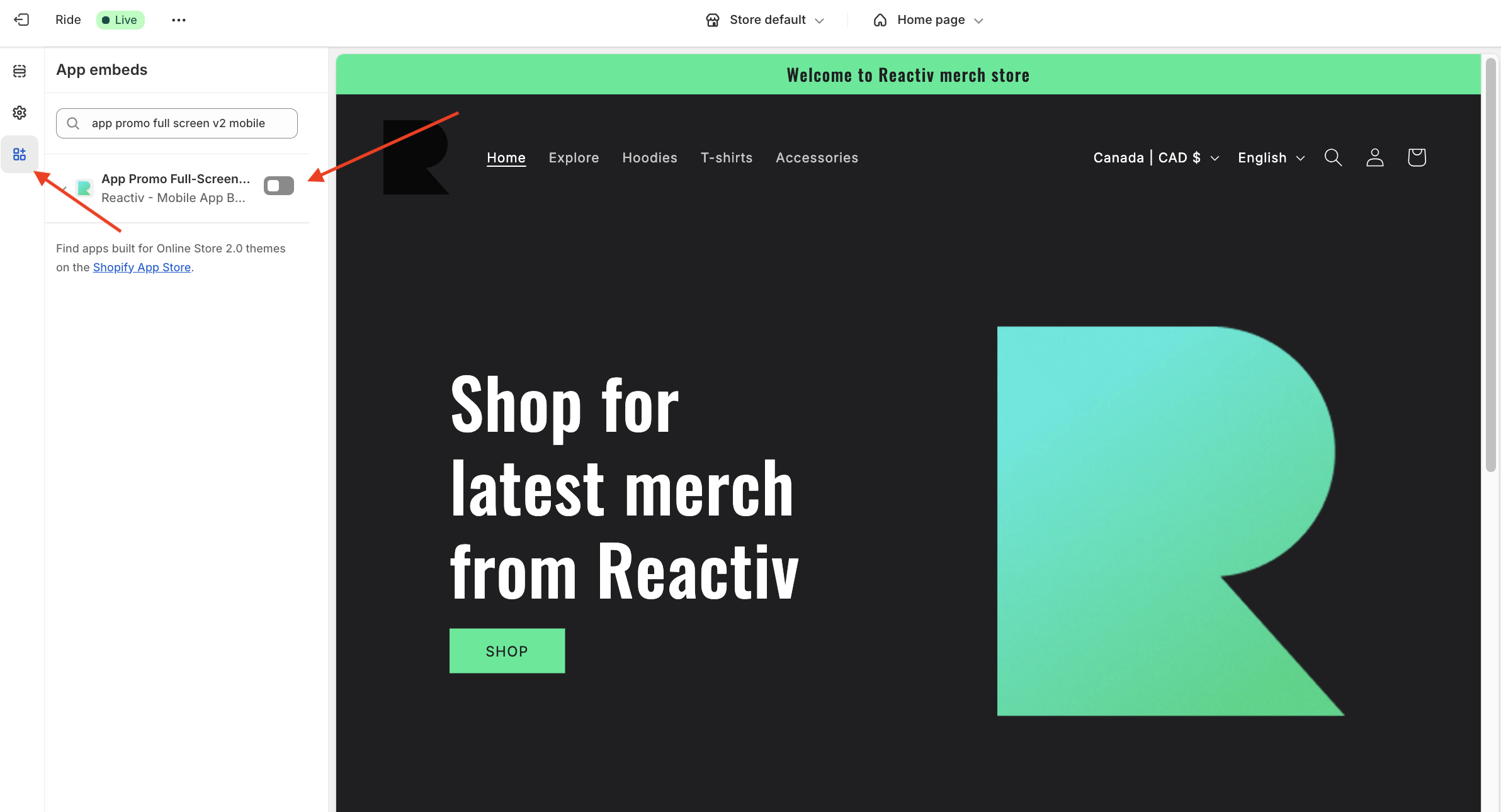
- In the theme editor, click Apps -> Add Block -> Reactiv Header Banner
- Use the search bar or scroll to find Reactiv Header Banner.
- Toggle the switch to enable the banner.
Customize the App Promo Content
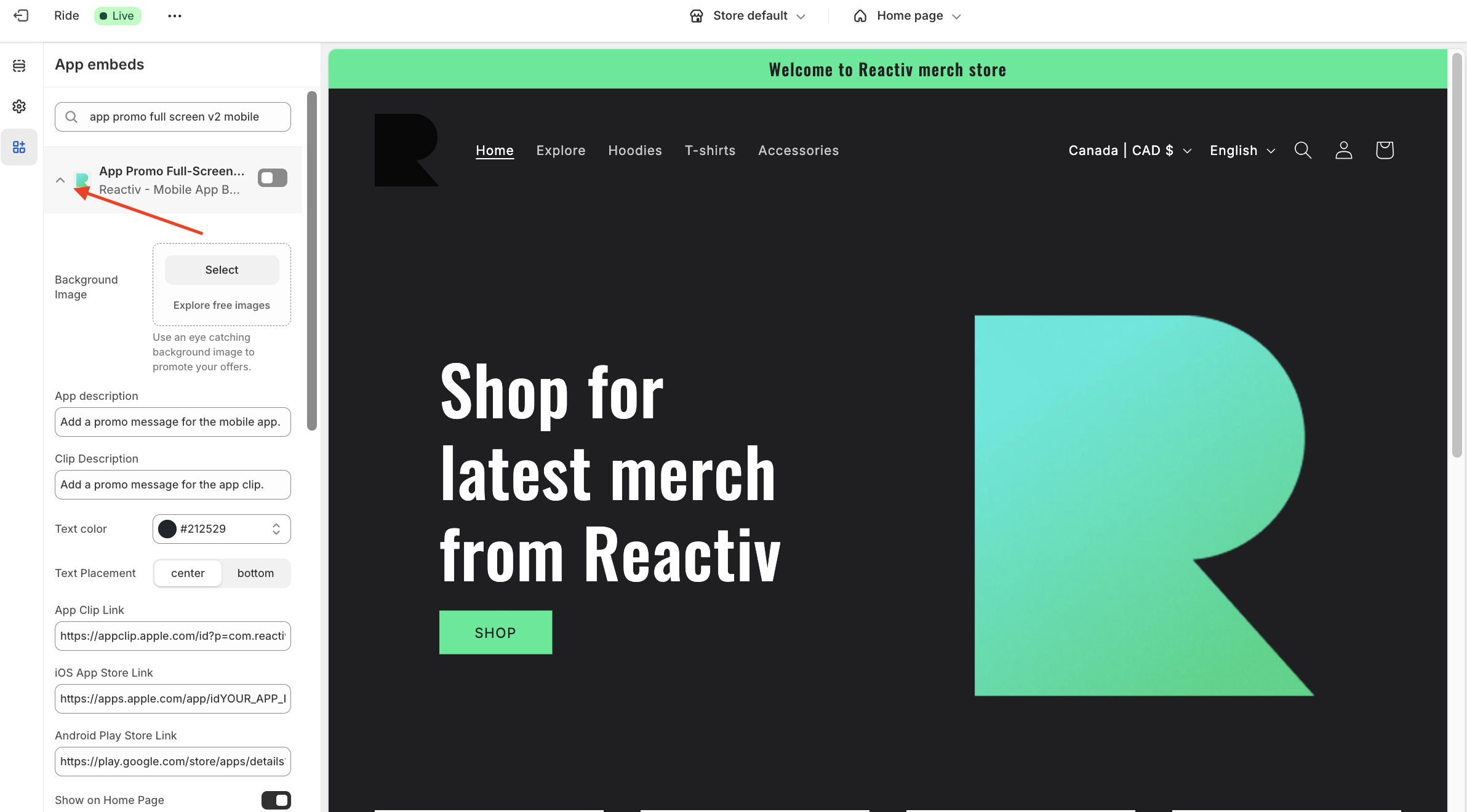
After enabling, you’ll see customizable fields in the App embed panel:
App Content
- Background Image – Select or upload an eye-catching image to help promote your app. You can also explore free images directly from the panel.
- App Description – Add a short promo message that highlights the value of your mobile app.
- Clip Description – Write a message specifically for your iOS App Clip (e.g., a quick value proposition or call-to-action).
- Text Color – Customize the text color used in your banner.
- Text Placement – Choose whether your message appears centered or at the bottom of the banner.
App Links
- App Clip Link – Paste your iOS App Clip URL.
- iOS App Store Link – Enter the direct link to your app on the iOS App Store.
- Android Play Store Link – Enter the direct link to your app on the Google Play Store.
Display Settings
- Show on Home Page – Toggle this on to display the banner on your store’s homepage.
- Show on Collection Pages – Enable this to display the banner on collection pages. Use the Choose Collections button to select which collections to target.
- Show on Product Pages – Turn this on to show the banner on specific product pages. Use the Choose Products button to select products.
Button Customization
- Font Family – Select a font for your banner text (e.g., Montserrat).
- Open Clip Button Label – Customize the label for the App Clip button (e.g., “Shop now”).
- Open Clip Button Background Color – Set the background color of the App Clip button.
- Open Clip Button Text Color – Choose the text color for the App Clip button.
- Open in Browser Button Label – Customize the label for the fallback browser button (e.g., “Continue in browser”).
- Open in Browser Button Background Color – Set the background color of the browser button.
- Open in Browser Button Text Color – Choose the text color for the browser button.
Advanced Settings
- Custom CSS – Use this field to add optional CSS overrides for more control over appearance.
- App UUID / Store UUID – Use this field to increase the accuracy of tracking and reporting your banners. This information can be found in the Reactiv dashboard under App Details.
Tips
- Use vibrant images and short, compelling text to capture attention.
- The App Promo banner is a powerful tool to drive app installs from mobile web visitors.
- Don’t forget to publish your theme changes when you’re ready to go live!
💡 Need Help?
We’re here for you! Visit www.reactivapp.com or reach out to our support team anytime for tips, troubleshooting, or personalized guidance.
Was this page helpful?