Building Your Reactiv Clips
Reactiv Clips Product Listing & Product Details Screens
Overview
You can configure the presentation, layout and features of your Reactiv Clips experiences using the Clips Studio.
Clips Studio Guide
Navigate to the Clips Studio on the Clips Studio.
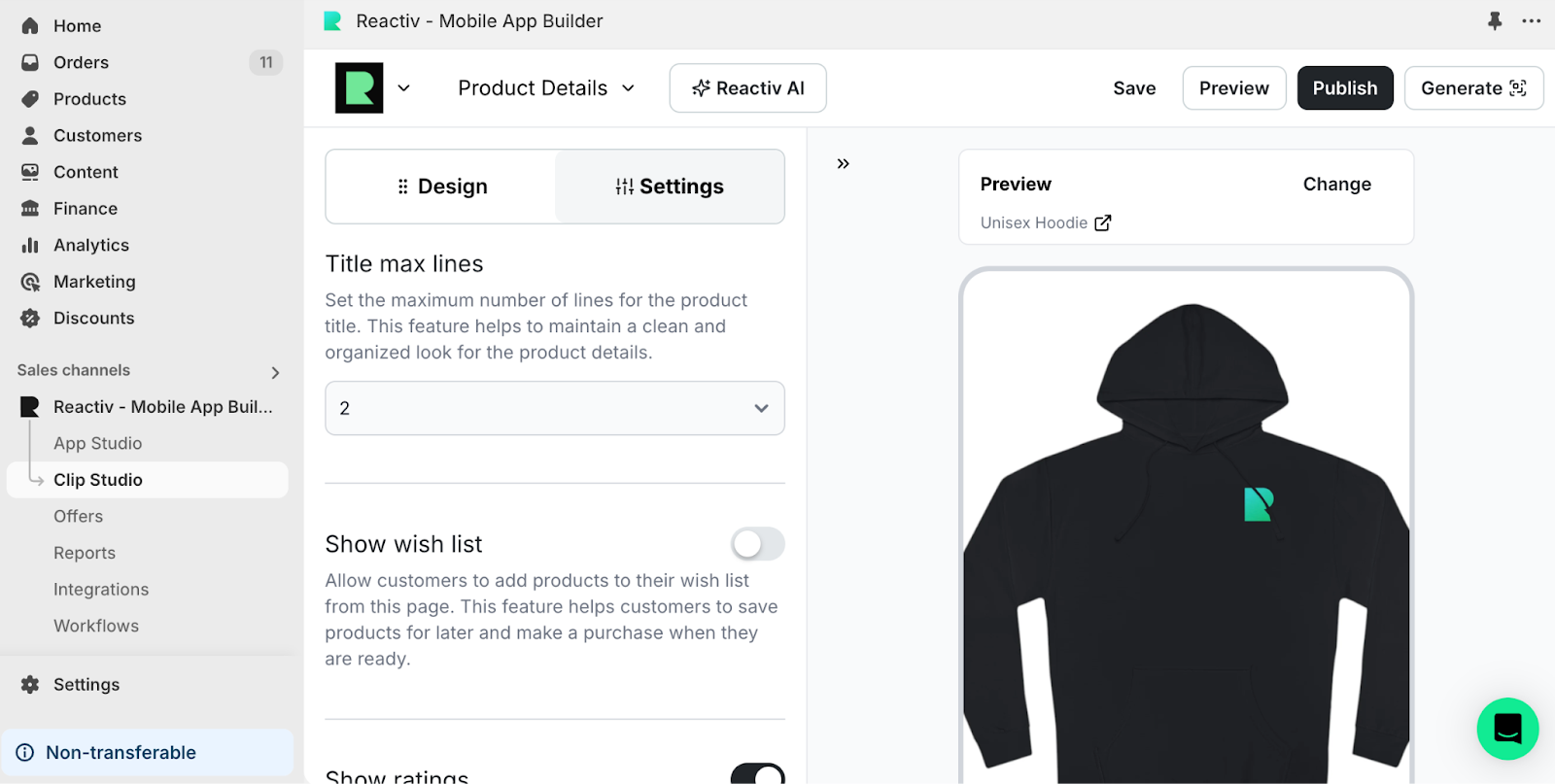
Use the drop-down menu at the top of the to select the Reactiv Clips screen that you want to customize.
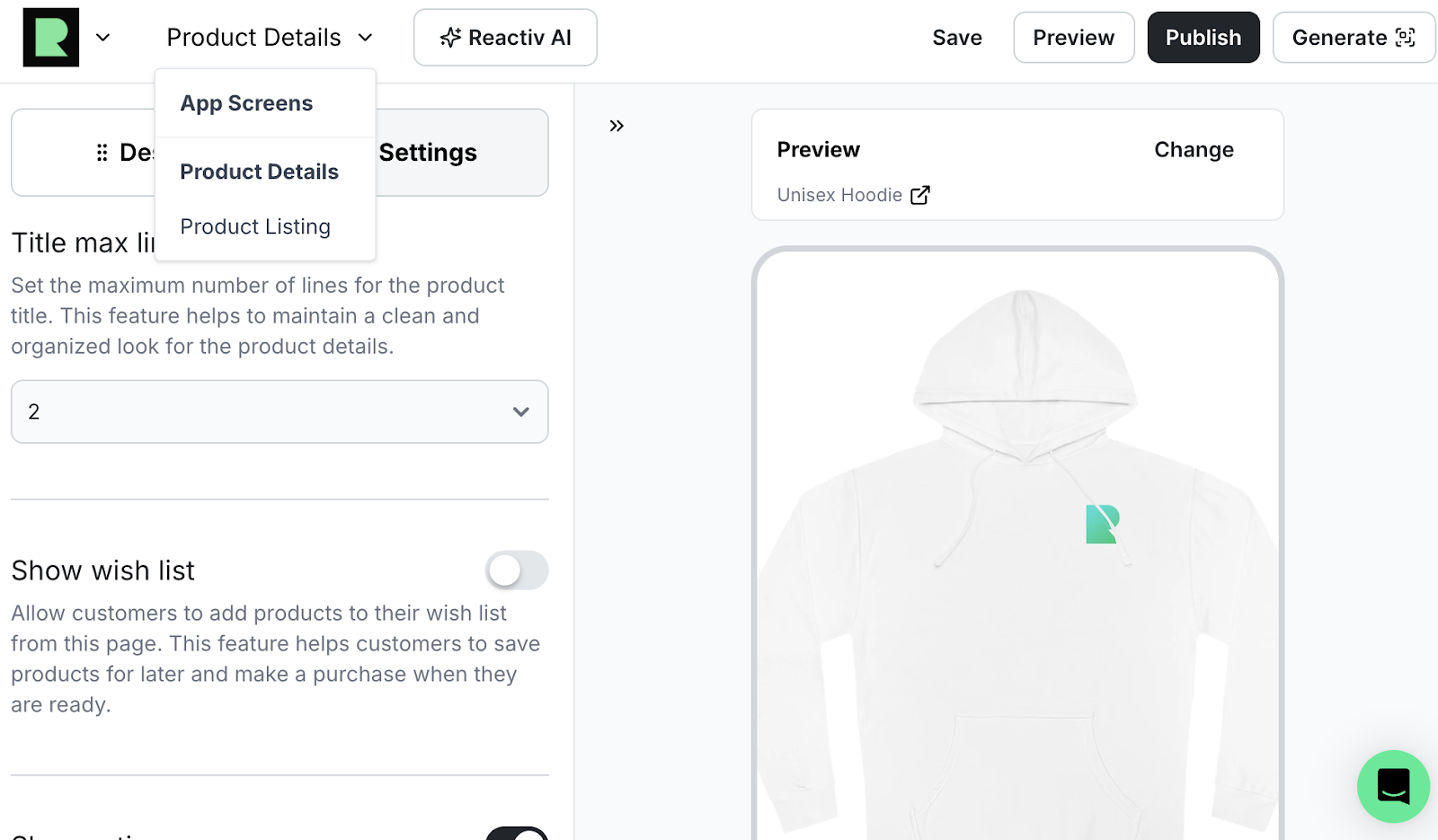
Customizing Your Product Details Screen
- The Product Details option lets you customize your Reactiv Clips Product screens.
- You can reorder sections (e.g., Product Descriptions, Product Recommendations, etc.) by dragging and dropping them to your liking.
- Under Settings, you can enable or disable the sections you want to display or change their presentation.
Customizing Your Product Listings Screen
- The Product Listing option lets you customize your Reactiv Clips Product Listing screen (also known as Collections screens).
- You can enable or disable which sections you want to display and change their presentation.
Previewing & Publishing Your Changes
- Use the Preview button to see what your Reactiv Clips experiences will look like without publishing.
- Use the Save button to save your changes without publishing.
- Use the Publish button to push your changes live.
- Use the Demo button to preview your Reactiv Clips experiences on your iPhone.
Was this page helpful?