Building Your App
Add a Carousel Banner to your Homepage
Adding a carousel banner to your homepage is a great way to showcase multiple images, promotions, or featured products in a dynamic and visually appealing manner. Follow the steps below to add a carousel banner to your homepage using Reactiv's drag-and-drop builder.
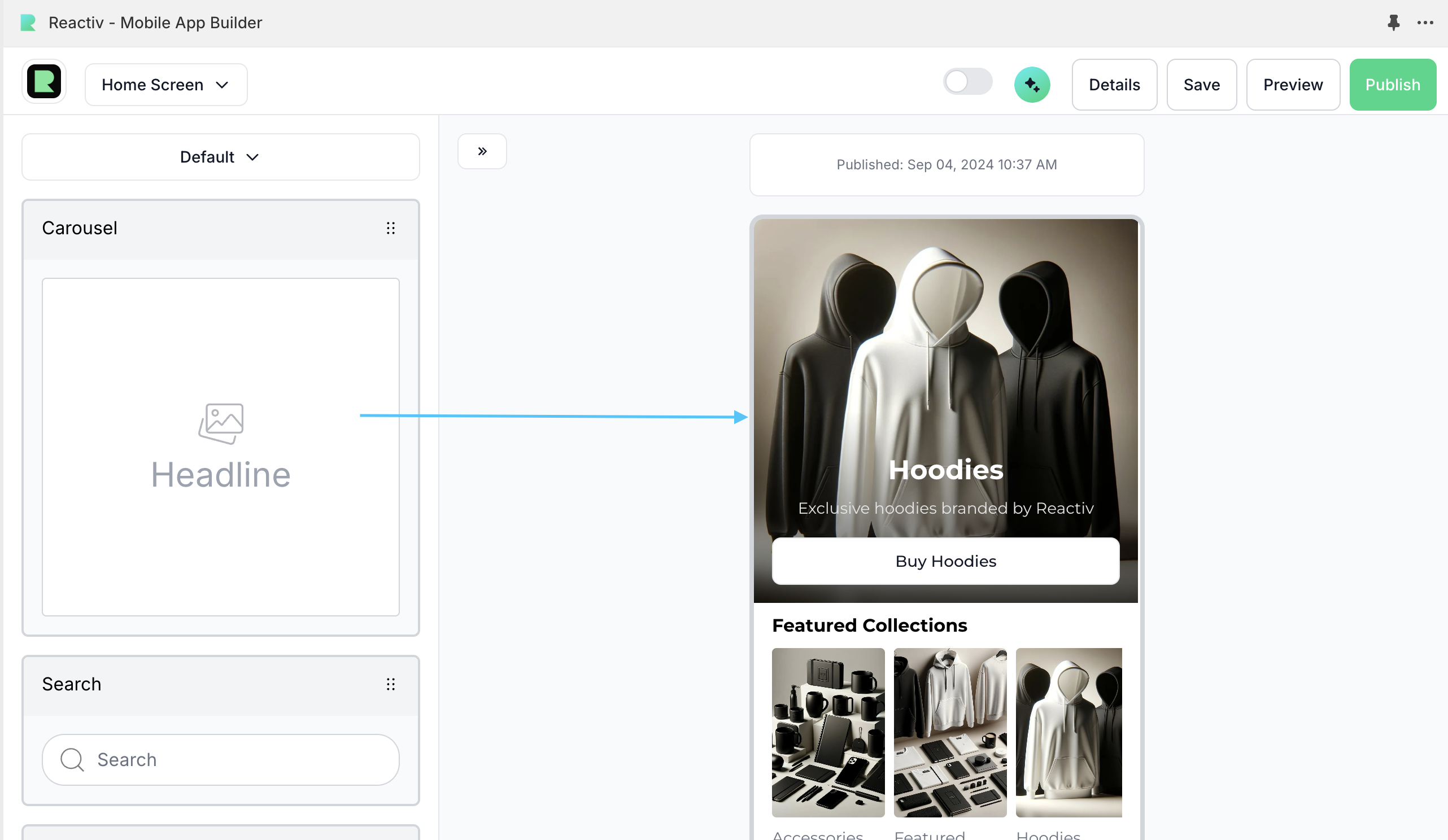
Step-by-Step Guide
Step 1: Log in to Your Reactiv Dashboard
- Login to your Shopify store and navigate to the Sales Channel section.
- Open the Reactiv dashboard to get started.
- Open Studio > Home screen to start designing your home screen.
Step 2: Add the Carousel Banner Section
- In the list of available sections, look for the Carousel section.
- Drag the Carousel section and drop it into the desired position on your homepage preview.
Step 3: Customize the Carousel Banners
- Click on the edit section button in the homepage preview to open the customization options.
- You can add banners, set titles, and configure the styling of the banners. Here are the main customization options:
-
Add banners: Click the Add Banner button to select what kind of banner you want to upload.
- Product: Link the banner to a specific product page.
- Collection: Link the banner to a specific collection.
- Website Link: Link the banner to open any web URL.
- No Link: The banner is not linked to any resources.
-
Set Title & Description: Add an optional title and description captions to each banner if desired.
-
Step 4: Configure Section Settings
- In the Section Settings, you can adjust the appearance and behavior of the carousel banner.
- Configure settings such as:
- Style: Choose the layout of the banners to be square, portrait, or landscape.
- Image display: Choose if the banner image fits or fills the container.
- Title and Description color: Choose the color or the banner title and description.
Step 5: Save and Publish
- Once you have customized the carousel banner to your liking, click the Save button.
- To make the changes live on your app, click the Publish button.
Additional Tips
- Image Dimensions: Ensure your images are optimized for mobile and have consistent dimensions for the best display.
- Testing: Preview your changes on different devices to ensure the carousel banner looks good on both mobile and desktop screens.
- Updates: Regularly update the images and content in your carousel banner to keep your homepage fresh and engaging.
Was this page helpful?